Video to Prompt: How to Reverse-Engineer Videos Into AI Prompts
A finished video contains much more information than a single image.
It has a subject, environment, composition, camera angle, camera movement, subject movement, pacing, transitions, lighting changes, sound, and a sequence of events that unfolds over time.
That is why turning a video back into a useful AI generation prompt is different from simply describing what appears in one frame.
Video to prompt is the process of analyzing a reference video and reconstructing its observable creative and technical characteristics into a reusable AI video-generation prompt.
A basic workflow looks like this:
REFERENCE VIDEO
      ↓
OBSERVABLE SIGNALS
      ↓
Subject
Action
Environment
Composition
Camera
Motion
Lighting
Timing
Style
Audio
Transitions
      ↓
RECONSTRUCTED PROMPT
The word reconstructed matters.
A video does not reveal the exact text prompt that originally created it. The original generation may also have depended on a reference image, seed, model settings, hidden system instructions, editing, multiple generations, post-production, or other inputs that are not visible in the final clip.
So a responsible video-to-prompt workflow does not claim to recover the hidden original prompt with certainty.
Instead, it asks:
What prompt would reproduce the most important observable characteristics of this video?
This guide explains how video-to-prompt works, what should be analyzed in a reference video, how video prompts differ from image descriptions, how to reconstruct camera and temporal behavior, when to decompose a video shot by shot, how to adapt a reconstructed prompt for current AI video models, and how PrompTessor Reverse Prompt fits into the workflow.
Quick Answer
To turn a video into an AI prompt, analyze the parts of the video that affect generation:
- subject,
- appearance,
- action,
- environment,
- composition,
- camera angle,
- camera movement,
- subject motion,
- environmental motion,
- lighting,
- timing and pacing,
- transitions,
- visual style,
- and audio when relevant.
Then convert those observations into generation instructions.
For example, this description:
A woman walks through a city at night.can become a more useful video prompt:
Cinematic medium tracking shot of a woman walking through a
rain-soaked neon city street at night.

The camera tracks backward smoothly in front of her at walking
speed while maintaining a medium framing.

Wet pavement reflects magenta and cyan signage. Passing traffic
and pedestrians create subtle background motion.

Shallow depth of field, soft atmospheric haze, realistic skin
tones, high-contrast night lighting, restrained cinematic color
grading.

The shot begins with the subject entering frame, continues as
the camera tracks backward, and ends with a slow push-in toward
her face.
The second version does not merely say what is visible. It describes how the scene behaves over time.
Key Takeaways
- Video to prompt reconstructs a useful generation prompt from observable video characteristics.
- It usually cannot recover the exact original hidden prompt.
- A video prompt must describe time and motion, not only appearance.
- Subject motion and camera motion should be analyzed separately.
- Environmental motion can matter as much as the main subject.
- Camera framing, angle, and trajectory strongly affect how a generated video feels.
- Single-shot videos can often be represented with one coherent prompt.
- Multi-shot videos are usually better decomposed into individual shots or a storyboard.
- Timing can be represented with phases, timestamps, or shot durations when the target model supports that level of control.
- A reverse prompt should be a generative instruction, not merely a caption.
- “Cinematic” is too vague by itself; describe the specific camera, lighting, motion, and composition that create the cinematic effect.
- Audio can include dialogue, ambience, music, and sound effects where the target generator supports synchronized audio.
- Recreating a reference and adapting its structure to a new subject are different workflows.
- Model-agnostic video prompts can preserve the creative core while provider-specific syntax or controls are adapted later.
- Current Veo guidance emphasizes subject, action, scene, camera, lighting, style, and audio detail.
- Kling's current official video prompting guidance uses a similar core of subject, movement, scene, camera language, and lighting, with modern Kling models also supporting multi-shot control.
- Runway's current guidance distinguishes text-to-video prompts, which should describe visuals and motion, from image-to-video prompts, which should focus more heavily on motion.
- OpenAI's Sora 2 API is currently legacy and scheduled for discontinuation on September 24, 2026, so Sora-specific prompt guidance should be treated as time-sensitive.
- PrompTessor Video to Prompt is part of Reverse Prompt and turns video references into reusable prompts describing scenes, motion, timing, pacing, camera behavior, visual style, transitions, and constraints.
Table of Contents
- What Is Video to Prompt?
- Can You Recover the Original Prompt From a Video?
- What Should You Analyze in a Reference Video?
- Anatomy of an AI Video Prompt
- Image Prompt vs. Video Prompt
- Video Description vs. Video Prompt
- Why Camera Motion Matters
- Subject Motion vs. Camera Motion vs. Environmental Motion
- Temporal Prompting
- Single-Shot vs. Multi-Shot Videos
- Shot-by-Shot Reverse Prompting
- Video-to-Prompt Reconstruction Workflow
- Recreate vs. Adapt a Reference Video
- Model-Agnostic vs. Model-Specific Video Prompts
- Adapting Video Prompts for Veo
- Adapting Video Prompts for Kling
- Adapting Video Prompts for Runway
- What About Sora Prompts?
- Video to Prompt for Ads
- Video to Prompt for UGC
- Video to Prompt for Cinematic Scenes
- Video to Prompt for Product Videos
- Video to Prompt for Animation
- Video-to-Prompt Examples
- Common Video-to-Prompt Mistakes
- Using PrompTessor Video to Prompt
- Video-to-Prompt Checklist
- Official Resources
- FAQ
What Is Video to Prompt?
Video to prompt is a reverse-prompting workflow that converts a finished video reference into a reusable prompt for generating or adapting similar video output.
It reverses the normal direction of generation:
TEXT TO VIDEO

Prompt
  ↓
Video


VIDEO TO PROMPT

Video
  ↓
Analysis
  ↓
Reconstructed Prompt
PrompTessor's public Video to Prompt documentation describes the workflow as converting a video reference into a structured prompt that captures scenes, motion, timing, pacing, camera behavior, visual style, transitions, and constraints.
This makes video-to-prompt useful when you:
- see a camera movement you want to recreate,
- want to understand how a product ad is structured,
- want to adapt a viral UGC format to another product,
- want to reuse the visual language of a cinematic clip,
- or simply need a stronger starting prompt than a blank text box.
For the broader reference-first workflow across images, videos, URLs, and text, see How to Reverse Prompt Images, Videos, URLs, and Text.
Can You Recover the Original Prompt From a Video?
Usually, no.
A final video is an output artifact. It does not reliably expose all of the inputs that produced it.
The original generation may have involved:
- a text prompt,
- a reference image,
- multiple reference images,
- a previous video,
- a seed,
- hidden provider instructions,
- negative constraints,
- camera controls,
- storyboard settings,
- model-specific parameters,
- several generations stitched together,
- editing,
- color grading,
- sound design,
- or manual compositing.
Two very different prompts can also produce visually similar videos.
So “extract the exact prompt” is usually the wrong mental model.
What You Can Recover
You can infer:
- what the scene depicts,
- what moves,
- how the camera behaves,
- how the shot is composed,
- how lighting and color are used,
- how the scene changes over time,
- how fast it is paced,
- and what stylistic signals define the result.
That is enough to produce a strong reconstructed prompt.
Reconstruction, Not Forensic Recovery
FINAL VIDEO
     ↓
OBSERVE
     ↓
INFER GENERATION DIRECTIONS
     ↓
RECONSTRUCT PROMPT
     ↓
GENERATE
     ↓
COMPARE
     ↓
REFINE
The reconstructed prompt should be judged by whether it captures the useful behavior of the reference, not whether its wording matches an unknown original prompt.
What Should You Analyze in a Reference Video?
A useful video reverse prompt is usually built from several layers.
1. Subject
Identify the primary visible subject:
- person,
- animal,
- product,
- vehicle,
- building,
- landscape,
- abstract object,
- or animated character.
2. Appearance
Describe details that materially affect the look:
- age range where relevant,
- clothing,
- materials,
- surface texture,
- color,
- product design,
- or character styling.
3. Action
What does the subject do?
walks toward camera
turns to the window
opens the package
pours the drink
rotates slowly
jumps
smiles
speaks
transforms
4. Environment
Where does the action happen?
- city street,
- studio,
- bedroom,
- forest,
- office,
- futuristic corridor,
- restaurant,
- or abstract set.
5. Composition
Identify framing and visual balance:
- extreme close-up,
- close-up,
- medium shot,
- full-body shot,
- wide shot,
- overhead,
- low angle,
- centered symmetry,
- or rule-of-thirds composition.
6. Camera
Separate camera position from camera movement.
Position:
eye level
low angle
high angle
top-down
profile
over-the-shoulder
Movement:
static
pan
tilt
push-in
pull-out
dolly
tracking
orbit
crane
handheld
drone movement
7. Subject Motion
Describe how the main subject moves through the frame.
8. Environmental Motion
Look for secondary movement:
- rain,
- smoke,
- hair moving in wind,
- traffic,
- crowds,
- fabric,
- water,
- floating particles,
- or moving reflections.
9. Lighting
Describe the actual lighting behavior rather than using only mood words.
soft window light from camera-left
hard rim light from behind
warm sunset backlight
cool fluorescent overhead lighting
neon magenta and cyan practical lights
high-key studio lighting
low-key directional lighting
10. Timing and Pacing
Does the action:
- start immediately,
- build slowly,
- pause,
- accelerate,
- end with a reveal,
- or loop seamlessly?
11. Visual Style
Useful style signals include:
- photoreal,
- commercial,
- documentary,
- UGC,
- cinematic,
- anime,
- stop-motion,
- surreal,
- retro VHS,
- or glossy product film.
12. Audio
If the target model supports audio, analyze:
- dialogue,
- voice character,
- ambient sound,
- music,
- foley,
- and sound effects.
13. Transitions
For multi-shot clips, identify:
- hard cuts,
- match cuts,
- whip transitions,
- cross dissolves,
- speed ramps,
- or continuous hidden transitions.
Anatomy of an AI Video Prompt
A strong model-agnostic video prompt can often be expressed as:
SUBJECT
+
ACTION
+
ENVIRONMENT
+
COMPOSITION
+
CAMERA
+
SUBJECT MOTION
+
ENVIRONMENT MOTION
+
LIGHTING
+
TIMING
+
STYLE
+
AUDIO
+
CONSTRAINTS
Not every prompt needs every field.
The point is to identify which components define the reference video's behavior.
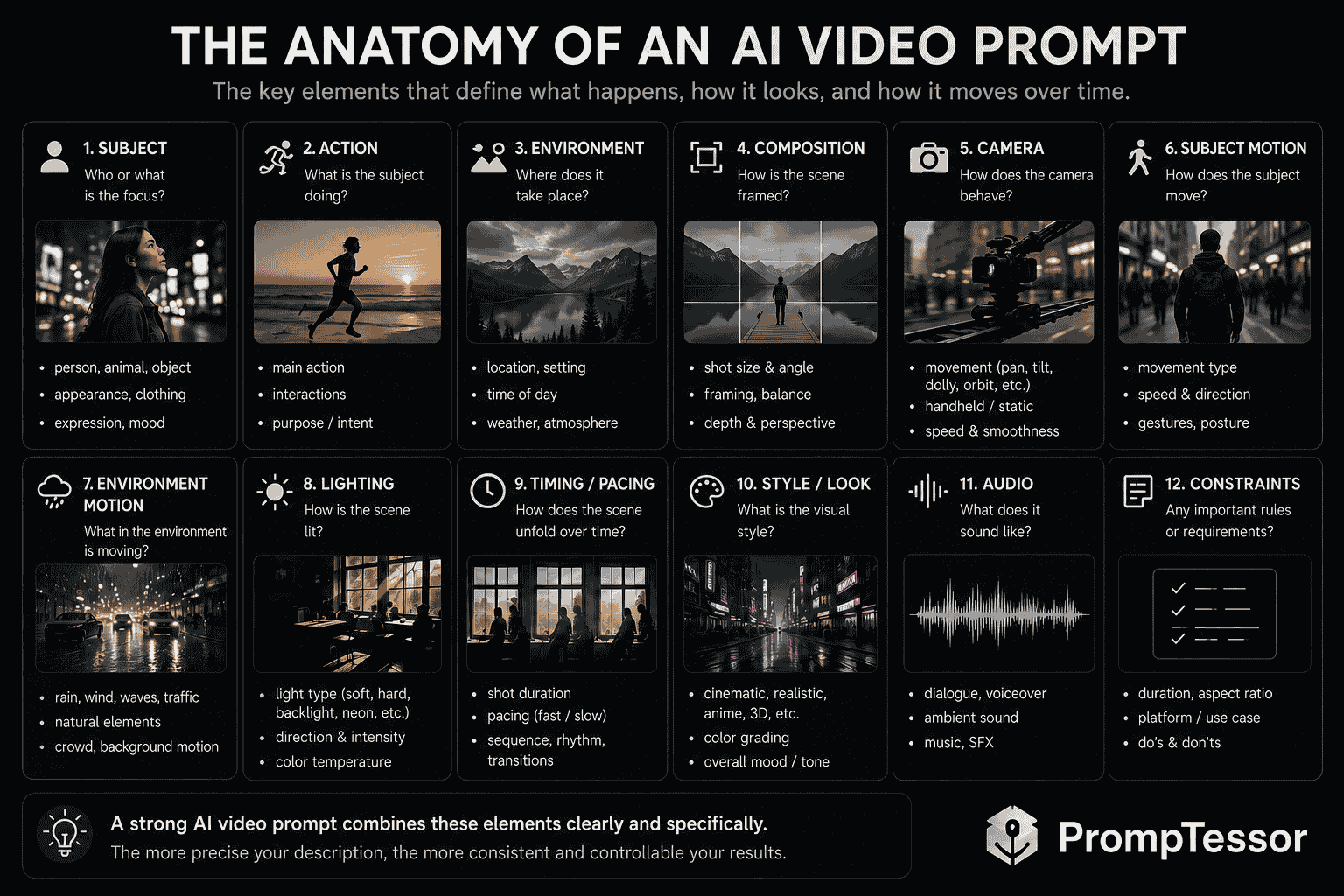
Image Prompt vs. Video Prompt
An image prompt describes a visual state.
A video prompt describes a visual state plus change over time.
| Image Prompt | Video Prompt |
|---|---|
| Subject appearance | Subject appearance + movement |
| Composition | Composition + changing framing |
| Lighting | Lighting + changes over time |
| Static environment | Environment + environmental motion |
| One frame | Beginning, development, end state |
| No camera trajectory required | Camera trajectory may be central |
| No pacing | Pacing can determine the entire feel |
Image Prompt
A luxury perfume bottle on black stone, warm rim lighting,
soft reflections, shallow depth of field, premium commercial
photography.
Video Prompt
A luxury perfume bottle rests on black stone.

The camera begins in a close three-quarter angle and slowly
orbits clockwise around the bottle while pushing in.

A thin ribbon of mist moves across the base. Warm rim lighting
travels across the glass edges, revealing subtle reflections.

The shot ends on a centered macro view of the logo.
Premium fragrance commercial, slow controlled pacing,
shallow depth of field.
The second prompt contains a temporal plan.
For a deeper guide focused on animating still images, see Image-to-Video Prompts: How to Animate Photos, Products, Characters, and Art.
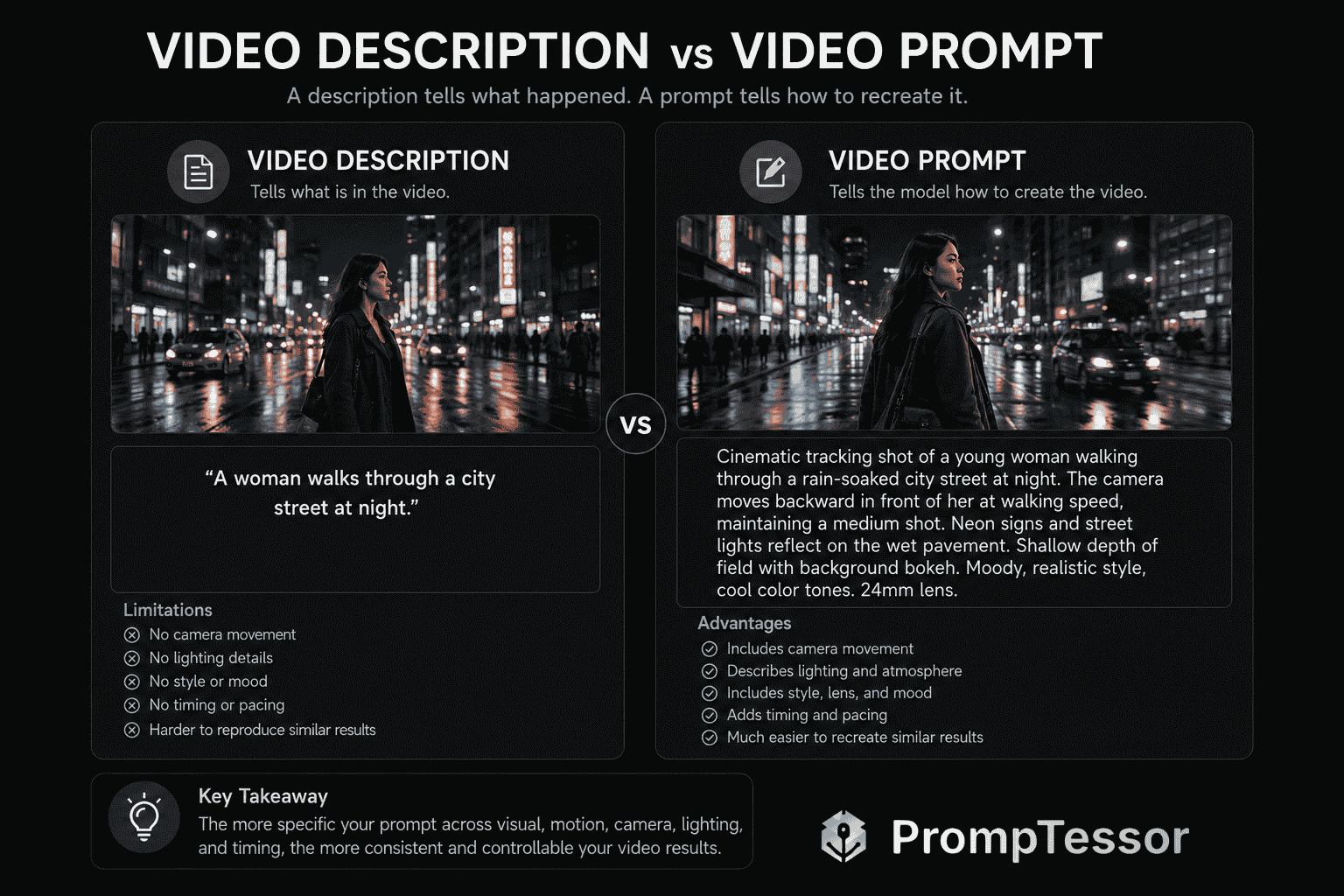
Video Description vs. Video Prompt
A caption answers:
What happened in the video?
A generation prompt answers:
What instructions would help create a video with similar observable characteristics?
Description
A man drives a truck at night.Generation Prompt
Nighttime cinematic profile shot of a weathered truck driver
moving along an empty highway.

The camera is handheld from the passenger seat, maintaining a
tight medium profile while subtle road vibration creates natural
micro-movement.

Dashboard light softly illuminates his face. Passing streetlights
create intermittent warm highlights. The background remains dark
with blurred highway lights.

Realistic low-light exposure, restrained film grain, documentary
texture, quiet tense mood.
The second version turns observation into production direction.
Why Camera Motion Matters
Camera motion is one of the fastest ways to change the meaning and energy of a generated clip.
Compare:
A woman stands in a hotel lobby.with:
A woman stands in a modern hotel lobby as the camera slowly
pushes toward her from a wide establishing shot to a medium
portrait.
and:
A woman walks through a modern hotel lobby while the camera
tracks beside her at waist height in a smooth lateral movement.
The subject and location are almost identical, but the generated scene language is different.
Common Camera Motions to Reverse-Engineer
- Static: camera remains fixed.
- Pan: camera rotates horizontally.
- Tilt: camera rotates vertically.
- Push-in: camera moves physically closer.
- Pull-out: camera moves away.
- Tracking: camera follows subject movement.
- Orbit: camera circles the subject.
- Crane / pedestal: camera changes vertical position.
- Handheld: intentional natural instability.
- Drone: elevated spatial movement.
Direction Matters
Do not stop at:
tracking shotWhen visible, specify:
The camera tracks backward in front of the subject.or:
The camera tracks left-to-right alongside the vehicle.Speed Matters
slow controlled orbitcreates a different result from:
fast energetic orbitSubject Motion vs. Camera Motion vs. Environmental Motion
One of the most common reverse-prompt mistakes is collapsing all movement into one vague phrase.
Separate the layers.
Subject Motion
The woman walks toward the camera.Camera Motion
The camera tracks backward at the same speed.Environmental Motion
Rain falls diagonally, traffic passes in the background, and
loose strands of hair move in the wind.
Together:
A woman walks steadily toward the camera through a rainy city
street. The camera tracks backward at matching walking speed,
holding a medium shot. Rain falls diagonally, cars move behind
her, and wind moves loose strands of her hair.
This is much more controllable than:
Cinematic movement in a rainy city.Temporal Prompting
Video generation is temporal.
A useful reverse prompt should represent what happens first, what changes next, and how the scene ends.
Beginning → Development → End
BEGINNING
The product sits in darkness with only a thin rim light.

DEVELOPMENT
The camera begins a slow orbit as a soft key light reveals the
surface texture.

END
The camera settles into a centered front view while the logo
becomes fully illuminated.
Timestamp-Style Prompting
When useful for planning:
0–2s:
Wide shot. Subject enters from frame-left.

2–5s:
Camera tracks backward as the subject walks toward the lens.

5–7s:
The subject stops. Camera slowly pushes into a close-up.
Whether the target model follows exact timestamps depends on the provider and generation mode, so timestamps should be treated as clear temporal guidance rather than a guaranteed frame-accurate editing timeline unless the tool explicitly supports that control.
Describe Pacing
Useful pacing descriptions include:
- slow and deliberate,
- fast-cut commercial,
- natural real-time movement,
- gradual reveal,
- energetic social-media pacing,
- or seamless loop.
Single-Shot vs. Multi-Shot Videos
| Single Shot | Multi Shot |
|---|---|
| One continuous camera setup | Multiple cuts or scene changes |
| One trajectory can describe camera motion | Each shot may need its own camera setup |
| One coherent prompt may be enough | Storyboard or shot list is often clearer |
| Continuity is naturally easier | Character, environment, and style continuity must be managed |
| Timing describes one continuous action | Timing includes individual shot durations and transitions |
Kling's current VIDEO 3.0 documentation explicitly supports multi-shot generation and Custom Multi-Shot controls where users can specify shot details and durations. This makes shot decomposition especially relevant for model-specific adaptation.
Shot-by-Shot Reverse Prompting
If the reference contains cuts, do not force everything into one undifferentiated paragraph.
Break it down:
SHOT 1 — 2s
Wide establishing shot of a neon convenience store at night.
Static camera. Rain falls in foreground.

SHOT 2 — 3s
Medium tracking shot of the protagonist entering the store.
Camera follows from behind.

SHOT 3 — 2s
Close-up of a hand placing a drink on the counter.
Shallow depth of field.

SHOT 4 — 2s
Macro product shot. Camera slowly pushes in.
Logo catches a warm highlight.
What to Capture Per Shot
- duration,
- framing,
- camera angle,
- subject,
- action,
- camera movement,
- lighting,
- transition,
- and continuity requirements.
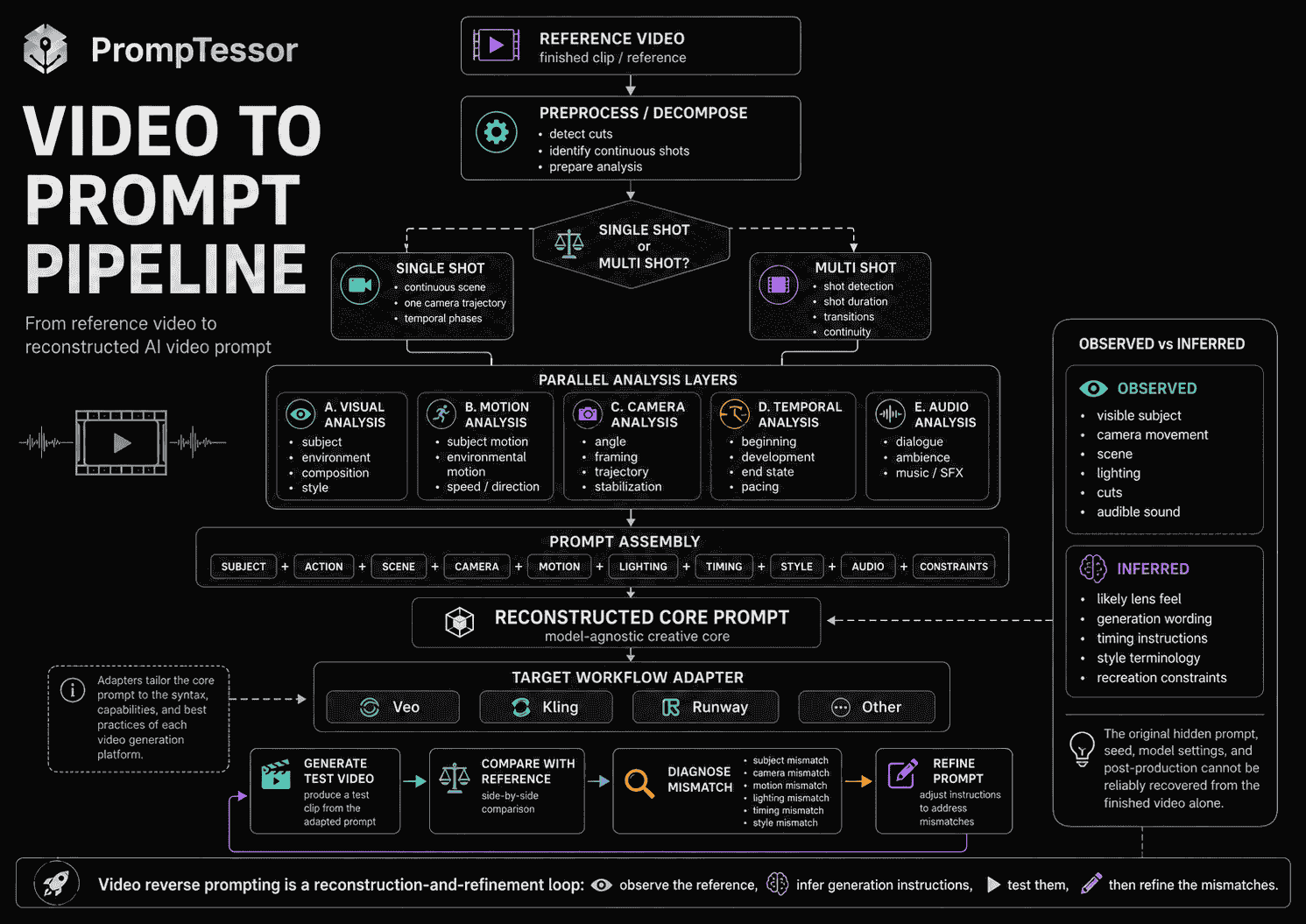
Video-to-Prompt Reconstruction Workflow
A practical workflow is:
REFERENCE VIDEO
      ↓
1. SHOT DETECTION
      ↓
2. SUBJECT / SCENE ANALYSIS
      ↓
3. MOTION ANALYSIS
      ↓
4. CAMERA ANALYSIS
      ↓
5. LIGHT / STYLE ANALYSIS
      ↓
6. TEMPORAL STRUCTURE
      ↓
7. AUDIO ANALYSIS
      ↓
8. PROMPT ASSEMBLY
      ↓
RECONSTRUCTED PROMPT
      ↓
GENERATE
      ↓
COMPARE
      ↓
REFINE
Step 1: Detect Shots
Find cuts, scene changes, hidden transitions, and major camera resets.
Step 2: Identify Stable Visual Elements
Subject identity, product appearance, environment, wardrobe, props, and color palette.
Step 3: Map Motion
Separate subject, camera, and environmental movement.
Step 4: Reconstruct Camera Language
Framing, angle, trajectory, speed, stabilization, perspective.
Step 5: Reconstruct Lighting and Style
Direction, softness, color, practical lights, grading, texture.
Step 6: Build Temporal Structure
Beginning, development, end state, pacing, shot durations.
Step 7: Add Audio
Dialogue, ambience, music, sound design where relevant.
Step 8: Assemble a Generative Prompt
Turn observations into instructions rather than a passive description.
Step 9: Generate and Compare
Look for mismatches:
- wrong camera direction,
- too much motion,
- incorrect framing,
- missing environmental motion,
- wrong light,
- poor timing,
- or style drift.
Step 10: Refine the Prompt
Change the instructions tied to the observed failure instead of rewriting everything.
Recreate vs. Adapt a Reference Video
Reverse prompting can serve two different goals.
Recreate
Reference video
      ↓
Preserve:
subject
environment
camera
motion
lighting
timing
style
      ↓
Generate a similar scene
Adapt
Reference video
      ↓
Extract reusable structure:
camera
pacing
shot sequence
lighting pattern
product reveal
      ↓
Replace:
subject
product
brand
environment
      ↓
Generate a new concept
Adaptation is often more useful because it separates the creative grammar of a video from its specific content.
Example
Reference:
Luxury sneaker rotates on a pedestal while the camera orbits,
then cuts to macro material details.
Adaptation:
Premium laptop sits on a matte pedestal.

Shot 1:
Slow orbit around the closed laptop with controlled rim lighting.

Shot 2:
Macro close-up of the aluminum edge and ports.

Shot 3:
The lid opens smoothly as the screen illuminates.

Keep the same slow premium commercial pacing and minimal dark
studio environment.
Model-Agnostic vs. Model-Specific Video Prompts
A useful reconstructed prompt should first preserve the creative meaning of the reference.
MODEL-AGNOSTIC CORE

Subject
Action
Environment
Composition
Camera
Motion
Lighting
Timing
Style
Audio
Constraints
Then adapt it to the target generator.
CORE VIDEO PROMPT
      ↓
MODEL ADAPTER
├ Veo
├ Kling
├ Runway
├ Sora / legacy workflow
└ Other video model
Provider-specific adaptation can include:
- shot-control syntax,
- reference inputs,
- audio support,
- duration controls,
- camera controls,
- negative prompting,
- aspect ratio,
- and model-specific generation modes.
The core creative intent should remain recognizable.
Adapting Video Prompts for Veo
Google's current Veo guidance emphasizes the same core dimensions that are useful in reverse prompting: subject, action, scene, camera behavior, lighting, style, and audio.
That makes a well-constructed model-agnostic reverse prompt relatively easy to adapt.
Veo-Oriented Example
Cinematic nighttime street scene.

A young woman walks through a rain-soaked neon district.

Camera:
Smooth backward tracking shot at eye level, maintaining a medium
framing as she walks toward the lens.

Motion:
Natural walking pace. Rain falls diagonally. Passing cars create
soft streaks of reflected light.

Lighting:
Magenta and cyan practical lights, soft skin illumination,
bright reflections on wet pavement.

Audio:
Distant traffic, rain ambience, subtle footsteps.

Style:
Photoreal cinematic drama, restrained color grading,
shallow depth of field.
Google's current Veo prompt guidance also shows that detailed prompts can specify camera composition, movement, visual style, and sound direction. Veo's prompt-rewriter documentation further notes that its enhancement system may add video description, camera motions, transcription, and sound effects to prompts.
Reverse-Prompting Implication
If the reference contains meaningful sound, include it.
If camera motion is the defining characteristic, make that a first-class part of the prompt rather than burying it in a style paragraph.
Adapting Video Prompts for Kling
Kling's current official Text-to-Video prompt guide organizes video prompting around:
- subject,
- movement,
- scene,
- camera language,
- and lighting.
This maps closely to a reverse-prompting decomposition.
Kling-Oriented Example
Subject:
A black sports car with glossy bodywork.

Movement:
The car accelerates through a wet tunnel as water sprays from
the tires.

Scene:
Nighttime urban tunnel with repeating overhead lights and wet
reflective pavement.

Camera:
Low front three-quarter tracking shot moving at the same speed
as the car. Brief lateral orbit as the car exits the tunnel.

Lighting:
Cool overhead tunnel lights, bright white headlamps, moving
reflections across the bodywork.

Style:
High-end automotive commercial, realistic motion, dramatic but
controlled contrast.
Multi-Shot Kling Workflows
Kling VIDEO 3.0 currently supports multi-shot generation, including a Custom Multi-Shot mode that can specify individual shot details and durations.
A reconstructed multi-shot prompt can therefore be adapted into:
SHOT 1 — 3s
Low front tracking shot as the car enters the tunnel.

SHOT 2 — 2s
Close-up of the spinning front wheel with water spray.

SHOT 3 — 3s
Side tracking shot as moving tunnel lights streak across the car.

SHOT 4 — 2s
Rear three-quarter shot as the car exits into the city.
Kling's current 3.0 Omni documentation also supports richer multimodal reference workflows, including video references and shot-level control, so a text-only reconstruction is not the only possible way to preserve a reference video's behavior.
Adapting Video Prompts for Runway
Runway's current prompting guidance makes an important distinction between Text to Video and Image to Video.
For current text-to-video workflows, Runway recommends describing both:
- what appears in the frame,
- and how those elements move.
For image-to-video workflows, Runway recommends focusing more strongly on motion because the input image already defines much of the visual appearance.
Text-to-Video Adaptation
A chef stands at a stainless-steel counter in a warm restaurant
kitchen.

She flips vegetables in a pan while steam rises.

The camera slowly pushes in from a medium shot as warm overhead
lights reflect from the metal surfaces.

Natural documentary movement, realistic cooking motion, subtle
handheld texture.
Image-to-Video Adaptation
If the reference frame already establishes the chef, kitchen, composition, and colors, the prompt can focus on motion:
The chef flips the vegetables once while steam rises from the pan.
She shifts her weight slightly and looks down toward the food.

The camera performs a slow controlled push-in with subtle
handheld micro-movement.

Background kitchen activity remains natural and understated.
Reverse-Prompting Implication
When adapting a reverse prompt, remove information the target workflow already gets from a reference image if repeating that information makes the prompt unnecessarily redundant.
What About Sora Prompts?
Sora-specific prompting is time-sensitive in 2026.
OpenAI's current documentation lists Sora 2 and Sora 2 Pro as legacy video models, and OpenAI's discontinuation notice currently schedules the Sora API to be discontinued on September 24, 2026.
So a long-lived video-to-prompt workflow should not depend on Sora-specific syntax as its core representation.
Keep the Creative Core Portable
A Sora-oriented historical or migration prompt can still use a familiar structure:
Shot:
Medium cinematic tracking shot.

Subject:
A cyclist riding through an empty coastal road at sunrise.

Action:
The cyclist pedals steadily as wind moves the jacket.

Camera:
The camera tracks from the side, then gradually moves ahead into
a front three-quarter angle.

Environment:
Ocean cliffs, warm sunrise haze, long shadows.

Audio:
Wind, bicycle drivetrain, distant waves.
But because Sora's current API lifecycle is changing, treat provider-specific Sora adaptations as migration-sensitive rather than as the canonical prompt format for your prompt library.
Video to Prompt for Ads
Advertising videos are especially useful references because they often contain deliberate timing, framing, product reveals, and visual hooks.
Analyze the Ad Structure
Look for:
- first-second hook,
- problem setup,
- product appearance,
- demonstration,
- camera rhythm,
- text overlays,
- proof moment,
- and CTA.
Example Ad Reverse Prompt
9:16 social product ad.

0–1.5s:
Extreme close-up of a scratched phone screen. Fast handheld
movement creates an immediate problem-focused hook.

1.5–4s:
Cut to a hand applying a screen protector. Clean overhead shot,
bright soft lighting.

4–7s:
Macro side angle showing bubbles disappearing as the protector
settles.

7–9s:
Product package enters beside the phone. Camera locks into a
clean centered composition.

Style:
Fast UGC-commercial hybrid, sharp product detail, natural hand
movement, quick cuts, no excessive cinematic effects.
Video to Prompt for UGC
UGC-style video should not be reverse-engineered as if it were a polished studio commercial.
Important signals include:
- phone-camera perspective,
- handheld micro-movement,
- creator framing,
- natural room light,
- casual gestures,
- imperfect timing,
- jump cuts,
- and direct-to-camera delivery.
UGC Reverse Prompt
Vertical 9:16 creator-style video filmed on a phone.

A creator sits at a desk with a laptop visible behind them and
speaks directly to camera.

Natural handheld framing with small realistic camera movements.
Soft window light from the side, ordinary home-office background.

The creator begins with a quick surprised reaction, then points
toward the laptop screen. A jump cut moves to a closer framing
for the result.

Keep the delivery casual, believable, and slightly imperfect
rather than polished like a studio advertisement.
Video to Prompt for Cinematic Scenes
“Cinematic” becomes useful only when you explain what creates the cinematic quality.
Analyze:
- shot scale,
- lens feel,
- camera stabilization,
- lighting direction,
- depth,
- atmosphere,
- color relationships,
- and pacing.
Cinematic Reverse Prompt
Wide cinematic dusk shot of a lone figure standing on a ridge
above a fog-filled valley.

The camera begins behind the figure and performs a very slow
crane upward while pulling back, revealing the full landscape.

Warm orange light from the horizon creates a thin rim around the
subject while the valley remains cool blue-gray.

Low clouds drift slowly below. The subject remains almost still.

Epic scale, restrained movement, natural atmospheric perspective,
high dynamic range, slow contemplative pacing.
Video to Prompt for Product Videos
Product videos depend heavily on:
- material appearance,
- light movement,
- camera orbit,
- macro detail,
- product reveal timing,
- and controlled background motion.
Product Reverse Prompt
Premium studio commercial for a black smartwatch.

Shot begins with an extreme macro of the brushed metal crown.
A narrow white highlight moves across the surface.

The camera slowly pulls back while orbiting to reveal the full
watch floating above a matte black pedestal.

The display turns on during the reveal.

Soft volumetric haze, controlled rim lights, glossy but realistic
reflections, minimal dark environment, precise luxury pacing.
Video to Prompt for Animation
Animated references add another layer: motion style.
Observe:
- frame rhythm,
- character squash and stretch,
- line style,
- rendering style,
- background motion,
- camera language,
- and transition logic.
Animation Reverse Prompt
Stylized 2D animation of a small robot running through a crowded
night market.

The robot moves with exaggerated squash-and-stretch motion and
quick expressive head turns.

Camera follows from a low three-quarter tracking angle.

Background stalls slide past with layered parallax. Lanterns
sway overhead.

Warm red and gold lighting, hand-painted texture, energetic
animation timing, clean readable silhouettes.
Video-to-Prompt Examples
Example 1: Cinematic Portrait
Close-up portrait of a woman standing beside a train window at dusk.
The camera slowly pushes toward her face as moving landscape
reflections pass across the glass. Soft cool interior light,
warm sunset outside, subtle eye movement, restrained film grain.
Example 2: Luxury Product Ad
A glass fragrance bottle rotates slowly on black stone while the
camera performs a controlled clockwise orbit. Warm rim light
reveals the glass edges. Fine mist drifts across the base.
End on a centered macro logo shot.
Example 3: UGC App Demo
Vertical phone-shot UGC video. Creator points toward a laptop
screen and reacts naturally. Small handheld movement, room light,
quick jump cut to a closer framing, casual creator pacing.
Example 4: Travel Video
Wide sunrise drone shot above a coastal village. Camera flies
forward slowly while rising. Ocean waves move below, morning fog
clears between rooftops, warm soft light, peaceful travel-film tone.
Example 5: Fashion Walk
Full-body tracking shot of a model walking through a minimalist
concrete corridor. Camera moves backward smoothly at matching
speed. Fabric moves naturally with each step. Hard side light
creates long graphic shadows.
Example 6: Food Commercial
Macro close-up of syrup being poured over pancakes. Slow push-in,
shallow depth of field, steam rising, warm morning window light,
high-detail food texture, deliberate appetizing pacing.
Example 7: Automotive Commercial
Low-angle side tracking shot of a sports car driving through a
wet city at night. Reflections move rapidly across the body,
water sprays from tires, camera remains stabilized and parallel
to the car.
Example 8: Drone Landscape
High aerial shot moving forward over a dense forest before
tilting down to reveal a waterfall. Slow smooth drone movement,
morning mist, natural green palette, cinematic travel documentary.
Example 9: Anime Action
Anime character launches forward across a rooftop. Fast lateral
camera tracking, exaggerated speed lines, coat and hair whipping
backward, dramatic low angle, strong blue moonlight.
Example 10: Sci-Fi Corridor
Single continuous push-in through a dark futuristic corridor.
Red emergency lights pulse along the walls. Steam vents release
brief bursts. A distant figure turns toward camera at the end.
Example 11: Architecture
Slow gimbal walk-through of a minimalist concrete house. Camera
moves from the entry toward a sunlit courtyard. Natural indirect
light, soft shadows, clean architectural composition, no people.
Example 12: Nature Macro
Extreme macro of a butterfly opening its wings on a wet leaf.
Camera remains nearly static with a tiny push-in. Morning droplets
glitter in soft backlight. Background plants move gently in wind.
Example 13: Smartphone Ad
Dark studio product film. Phone rotates from edge profile to
front view as the screen illuminates. Camera performs a slow
counter-orbit. Blue-white rim lights reveal the metal frame.
Example 14: SaaS Promo
Fast clean desktop-product promo. Start with a frustrated user at
a laptop, cut to a close screen interaction, then transition to a
clean UI result. Bright office light, quick 1–2 second shots,
clear problem-to-result pacing.
Example 15: TikTok Product Hook
Vertical creator video. First second shows the surprising result
in close-up. Quick cut to the creator holding the product, then a
handheld demonstration. Natural light, fast pacing, readable
phone framing.
Example 16: Transformation Scene
Medium shot of an empty room as walls gradually transform into a
lush indoor garden. Camera slowly pushes forward while plants
grow from surfaces. Lighting changes from cool white to warm
sunlight as the transformation completes.
Example 17: Seamless Loop
Top-down shot of coffee swirling in a white cup. Camera remains
fixed. Foam pattern rotates continuously and returns naturally
to the initial arrangement for a seamless loop.
Example 18: Dialogue Scene
Two people sit across from each other in a quiet diner at night.
Alternating close profile shots with subtle handheld movement.
Natural conversational gestures, low background ambience, soft
warm practical lights, restrained dramatic pacing.
Common Video-to-Prompt Mistakes
1. Treating a Video Like a Still Image
A frame description misses motion, timing, camera behavior, and scene development.
2. Claiming to Recover the Exact Original Prompt
The final video usually does not reveal the original wording, model settings, references, seed, editing, or hidden instructions.
3. Ignoring Camera Motion
A subject can look identical while a static shot, orbit, push-in, and tracking shot produce completely different results.
4. Mixing Camera Motion With Subject Motion
Describe what the subject does and what the camera does separately.
5. Ignoring Environmental Motion
Rain, smoke, traffic, fabric, particles, water, and reflections can define the scene's realism and energy.
6. Using “Cinematic” as the Entire Style Description
Specify the shot scale, movement, lighting, depth, atmosphere, and pacing that make the reference feel cinematic.
7. Ignoring Timing
A video prompt needs to describe sequence and pacing when those are important to the reference.
8. Forcing Multi-Shot Videos Into One Paragraph
Use a shot list or storyboard when the reference contains multiple cuts or camera setups.
9. Missing Shot Durations
When pacing matters, rough or model-supported durations can make the structure clearer.
10. Ignoring the Beginning and End State
Describe how the scene starts, how it develops, and where it ends.
11. Over-Describing Irrelevant Background Details
Prioritize characteristics that materially affect the generated result.
12. Under-Describing the Main Subject
If appearance is central to the reference, identify the details that need to remain consistent.
13. Ignoring Framing
Close-up, medium, full-body, and wide shots create different visual language.
14. Ignoring Camera Angle
Low-angle, top-down, profile, and eye-level shots communicate different perspectives.
15. Confusing Zoom With Physical Camera Movement
When visible, distinguish optical/digital zoom from a camera push-in or pull-out.
16. Ignoring Lens or Depth Cues
Wide perspective, telephoto compression, and shallow depth of field can materially change the recreation.
17. Ignoring Lighting Direction
“Beautiful lighting” is less useful than identifying where light comes from, how hard it is, and how it changes.
18. Ignoring Color Relationships
Warm/cool contrast, monochrome palettes, neon practicals, or muted grading can be important style signals.
19. Ignoring Audio
For audio-capable generators, dialogue, ambience, music, and sound effects can be part of the reconstructed prompt.
20. Copying Every Visual Detail When You Only Need the Structure
If your goal is adaptation, preserve camera, pacing, and reveal logic while replacing the subject or product.
21. Using One Prompt Format for Every Model
Keep a model-agnostic creative core and adapt provider-specific controls where needed.
22. Assuming Timestamps Are Frame-Accurate Everywhere
Temporal instructions can guide structure, but exact timing depends on the target generator's supported controls.
23. Ignoring Reference Inputs
Some current video models can use images, video, elements, first/last frames, or other references that may preserve appearance better than text alone.
24. Describing the Output Instead of Directing Generation
“A car drives through a tunnel” is a caption. A prompt should direct composition, movement, lighting, timing, and style.
25. No Generation-and-Compare Loop
A reverse prompt is a hypothesis. Generate with it and compare the result to the characteristics you wanted to preserve.
26. Changing Too Many Variables at Once
If the camera is wrong, fix the camera instructions before rewriting the subject, style, and timing too.
27. Ignoring Continuity
Multi-shot prompts should define what remains consistent across shots: subject, wardrobe, product, environment, and style.
28. Treating Post-Production as Generation
Some effects, transitions, text overlays, color grades, or edits may have been added after generation.
29. Building a Long-Lived Workflow Around a Deprecating Model
Provider lifecycles change. Keep the core prompt portable and isolate model-specific syntax.
30. Skipping Output Constraints
Aspect ratio, continuity requirements, unwanted text, number of subjects, or other constraints may be important to preserving the reference structure.
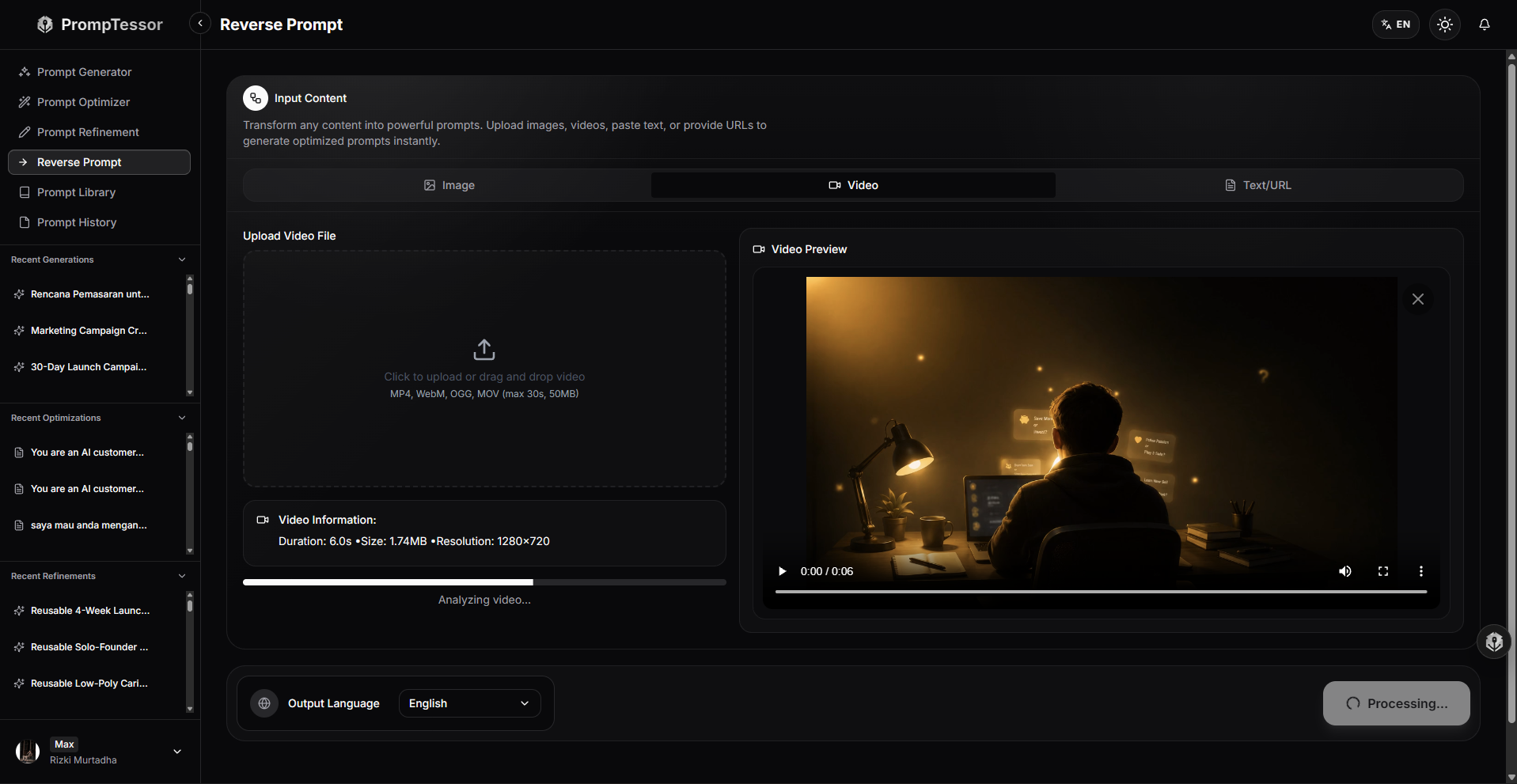
Using PrompTessor Video to Prompt
PrompTessor includes Video to Prompt as part of the broader Reverse Prompt workflow.
Instead of starting from a blank idea, you start from a reference video.
The workflow turns that reference into a reusable prompt that can describe the video's observable:
- scenes,
- motion,
- timing,
- pacing,
- camera behavior,
- visual style,
- transitions,
- and constraints.
This is particularly useful when the reference contains a creative pattern that is easier to show than describe from memory.
REFERENCE VIDEO
      ↓
PrompTessor Reverse Prompt
      ↓
VIDEO TO PROMPT
      ↓
RECONSTRUCTED PROMPT
      ↓
REVIEW / REFINE
      ↓
USE IN YOUR AI VIDEO WORKFLOW
What PrompTessor Is Doing in This Workflow
PrompTessor helps transform the reference into a reusable prompt direction.
It should not be interpreted as claiming access to the exact original hidden prompt, generation seed, private model instructions, or every piece of post-production used to create the reference.
The useful output is the reconstructed prompt.
Example
A reference might show:
A creator films a laptop screen, points at a result, then cuts
to a close-up of the screen while maintaining casual phone-camera
movement.
A reusable reverse prompt could capture:
Vertical 9:16 UGC-style phone video.

Start with a medium handheld view of a creator beside a laptop.
The creator points toward the laptop screen and reacts naturally.

Cut to a close-up of the laptop display while preserving subtle
phone-camera movement.

Natural indoor lighting, realistic home-office environment,
quick creator pacing, casual non-studio feel.

Keep the first shot focused on the creator reaction and the
second shot focused on the visible result.
You can then refine the subject, tool, product, environment, or output model while preserving the camera and pacing pattern you wanted from the reference.
Video-to-Prompt Checklist
- The goal is reconstruction or adaptation, not an unsupported claim of exact prompt recovery.
- The main subject is identified.
- Important appearance details are captured.
- The environment is described.
- Composition and framing are identified.
- Camera angle is identified.
- Camera movement is described separately from subject movement.
- Camera movement direction is explicit.
- Camera speed is described when important.
- Subject motion is clear.
- Environmental motion is clear.
- Lighting direction and quality are described.
- Color or grading characteristics are captured when important.
- The beginning of the scene is defined.
- The main temporal development is defined.
- The end state is defined.
- Pacing is described.
- Multi-shot videos are decomposed when necessary.
- Shot durations are included when useful and supported.
- Transitions are identified when they matter.
- Audio is described for audio-capable workflows.
- The prompt is written as generation direction, not only a caption.
- Unimportant visual details are not allowed to overwhelm the core behavior.
- Continuity requirements are explicit for multi-shot clips.
- Reference images or video inputs are considered when the target model supports them.
- The model-agnostic creative core is separated from provider-specific controls.
- Aspect ratio and output constraints are included where relevant.
- The reconstructed prompt is tested through generation.
- Differences between the reference and generated result are identified.
- Prompt revisions target the observed mismatch rather than changing everything at once.
Official Resources
- PrompTessor: Video to Prompt
- PrompTessor: Reverse Prompt
- PrompTessor Documentation: Reverse Prompt
- Google Cloud: Ultimate Prompting Guide for Veo 3.1
- Google Cloud: Video Generation Prompt Guide
- Google Cloud: Video Generation Best Practices
- Kling AI: Text-to-Video Prompt Guide
- Kling AI: VIDEO 3.0 Model User Guide
- Kling AI: VIDEO 3.0 Omni User Guide
- Runway: Text to Video Prompting Guide
- Runway: Image to Video Prompting Guide
- Runway: Creating With Gen-4.5
- OpenAI: Sora Discontinuation
- OpenAI API: Sora 2 Model
FAQ About Video to Prompt
What is video to prompt?
Video to prompt is the process of analyzing a reference video and reconstructing its observable subject, motion, camera, timing, lighting, style, audio, and shot structure into a reusable AI video-generation prompt.
Is video to prompt the same as reverse prompting?
Yes. Video to prompt is a specialized reverse-prompting workflow focused specifically on video references.
Can video to prompt recover the exact original prompt?
Usually not. The final video does not reliably reveal the original wording, seed, model settings, hidden instructions, reference media, editing, or post-production.
What can be recovered from a video?
You can infer observable characteristics such as subject, action, environment, composition, camera movement, subject motion, lighting, timing, pacing, style, transitions, and audio.
What is the difference between a video caption and a video prompt?
A caption describes what happened. A generation prompt gives instructions for recreating the scene's appearance, movement, camera behavior, timing, and style.
What should a good AI video prompt include?
A good video prompt usually includes the subject, action, environment, composition, camera, motion, lighting, timing, style, audio when relevant, and important constraints.
Why is camera motion important in video prompts?
Camera motion changes framing, energy, perspective, and storytelling. A static shot, tracking shot, orbit, or push-in can produce very different results even with the same subject.
What is the difference between subject motion and camera motion?
Subject motion describes how the person or object moves. Camera motion describes how the viewpoint moves around or relative to the subject.
What is environmental motion?
Environmental motion includes secondary movement such as rain, smoke, traffic, wind, fabric, waves, particles, or moving reflections.
How do I describe timing in a video prompt?
You can describe beginning, development, and end states, or use rough timestamps and shot durations when the target workflow supports that level of control.
Do timestamps work exactly in every AI video model?
No. Timestamps can communicate temporal intent, but exact timing control depends on the capabilities of the target generator.
How should I reverse prompt a multi-shot video?
Break it into individual shots and describe each shot's duration, framing, action, camera movement, lighting, transition, and continuity requirements.
What is the difference between single-shot and multi-shot reverse prompting?
A single-shot video can often be represented with one continuous camera and action description. Multi-shot videos usually benefit from a storyboard or shot list.
Can I reverse prompt a video for a different subject?
Yes. You can preserve reusable characteristics such as camera movement, pacing, lighting, and shot sequence while replacing the original subject, product, or environment.
What is the difference between recreating and adapting a video?
Recreating tries to preserve most observable characteristics. Adapting extracts the creative structure and applies it to new content.
Can video-to-prompt be used for UGC videos?
Yes. UGC reverse prompts can capture phone-camera framing, handheld motion, natural lighting, creator gestures, jump cuts, and casual pacing.
Can video-to-prompt be used for ads?
Yes. It can help reconstruct hooks, product reveals, shot rhythm, camera behavior, pacing, demonstrations, and CTA structure.
Can video-to-prompt be used for cinematic videos?
Yes. Focus on framing, camera movement, lens feel, lighting, atmosphere, depth, color relationships, and pacing rather than relying only on the word cinematic.
Can video-to-prompt be used for product videos?
Yes. Product reverse prompting is useful for reconstructing camera orbits, macro details, material reflections, product reveal timing, studio lighting, and commercial pacing.
Can video-to-prompt be used for animation?
Yes. Include animation style, character motion, line or render style, frame rhythm, camera behavior, parallax, and transition logic.
How do Veo prompts differ from general video prompts?
The creative core is similar, but Veo-specific workflows can make use of current Google controls and audio-capable prompting. Always check current Veo documentation for supported features.
How do Kling prompts differ from general video prompts?
Kling's current official guidance emphasizes subject, movement, scene, camera language, and lighting, while current Kling VIDEO 3.0 workflows also support multi-shot control and multimodal references.
How do Runway prompts differ from general video prompts?
Runway currently distinguishes Text to Video prompts, which should describe visuals and motion, from Image to Video prompts, which should focus more strongly on motion because the image already defines appearance.
Can I still use Sora prompts?
Sora-specific prompting is currently migration-sensitive. OpenAI lists Sora 2 as legacy and has announced that the Sora API is scheduled for discontinuation on September 24, 2026.
Should I write one video prompt for every model?
Start with a model-agnostic creative core and adapt provider-specific controls only when the target model or evaluation requires it.
Does video to prompt include audio?
It can. When the target model supports synchronized audio, useful audio directions can include dialogue, ambience, music, foley, and sound effects.
Can post-production effects be recovered from a video prompt?
You can describe observable effects, but you cannot always determine whether they came from the original generation or were added later in editing.
How do I improve a reconstructed video prompt?
Generate a result, compare it with the characteristics you wanted to preserve, identify the mismatch, and revise the corresponding camera, motion, lighting, timing, or style instruction.
What is PrompTessor Video to Prompt?
PrompTessor Video to Prompt is part of Reverse Prompt and turns a reference video into a reusable prompt describing observable scene structure, motion, timing, pacing, camera behavior, visual style, transitions, and constraints.
Does PrompTessor recover the exact hidden prompt from a video?
The useful framing is reconstruction rather than guaranteed exact recovery. PrompTessor helps turn the observable reference into a reusable prompt direction that can be reviewed, refined, and adapted.
Conclusion
Video-to-prompt works because a finished clip contains a visible creative structure that can be decomposed and described.
The goal is not to guess one magical sentence that must have created the video.
The goal is to identify the generation-relevant signals that define the result.
REFERENCE VIDEO
      ↓
SUBJECT
ACTION
ENVIRONMENT
COMPOSITION
CAMERA
MOTION
LIGHTING
TIMING
STYLE
AUDIO
TRANSITIONS
      ↓
RECONSTRUCTED PROMPT
      ↓
GENERATE
      ↓
COMPARE
      ↓
REFINE
The strongest reverse prompts distinguish appearance from movement.
They distinguish subject motion from camera motion.
They describe how the video starts, develops, and ends.
They break multi-shot clips into separate shots instead of forcing several camera setups into one paragraph.
They describe the actual ingredients behind words such as “cinematic,” “UGC,” or “commercial.”
And they remain portable enough that the same creative core can be adapted to the current capabilities of Veo, Kling, Runway, or another generation model.
Provider-specific features matter, but they should sit on top of a clear creative representation.
That is especially important because video-generation products change quickly. Current Kling workflows support multi-shot and multimodal reference control. Current Veo guidance includes detailed camera and audio direction. Runway distinguishes motion-focused image-to-video prompting from text-to-video prompting. OpenAI's Sora API is currently on a discontinuation path.
A portable reverse prompt protects the creative idea from those lifecycle changes.
For a simple reference, the process may be:
Watch
↓
Describe motion and camera
↓
Build prompt
↓
Generate
For a complex reference, it becomes:
Detect shots
↓
Analyze each shot
↓
Preserve continuity
↓
Reconstruct timing
↓
Build storyboard prompt
↓
Adapt to model
↓
Generate
↓
Evaluate
PrompTessor Video to Prompt fits at the reference-analysis and reconstruction stage.
You provide the video reference.
The workflow helps turn its observable scenes, motion, timing, pacing, camera behavior, visual style, transitions, and constraints into a reusable prompt.
You can then refine that prompt, change the subject or product, adapt it to a target model, and use it as a stronger starting point for your AI video workflow.
The final principle is simple:
Do not reverse prompt only what the video looks like. Reverse prompt how the video moves through time.
Build better prompts in one workspace
Generate prompts from ideas, analyze and optimize quality, refine with feedback, reverse-engineer content, and save reusable prompts in your Prompt Library.
Try PrompTessor Free