AI Video Prompts How to Write Better Prompts for Any AI Video Generator in 2026
AI video generators can turn text descriptions, images, audio, and visual references into cinematic scenes, product advertisements, character animations, social media clips, and short narrative videos.
However, video prompting requires more than describing what should appear in a single frame.
A video also develops over time.
The subject moves, the camera changes position, environmental elements react, dialogue may occur, sound can support the scene, and each action needs enough time to remain understandable.
A prompt such as “a woman walking through a city” identifies a subject and an action, but it leaves most production decisions undefined.
It does not explain the city, the character, the direction of movement, the camera angle, the camera movement, the lighting, the pacing, the atmosphere, the sound, or how the shot should end.
A stronger prompt gives the AI a clear visual and temporal direction without trying to control every individual frame.
This guide explains how to write better AI video prompts for Veo, Runway, Seedance, and other AI video generators.
You will learn how to structure video prompts, control subject and camera movement, maintain continuity, add dialogue and audio, adapt prompts for text-to-video and image-to-video workflows, and turn successful prompts into reusable templates.
Quick Answer
A strong AI video prompt clearly describes the video type, main subject, action, environment, shot framing, camera angle, camera movement, lighting, colors, mood, pacing, timing, audio, dialogue, continuity, and intended output. Text-to-video prompts usually need both visual and motion descriptions, while image-to-video prompts should focus more heavily on what moves, how it moves, and how the shot progresses over time.
Key Takeaways
- Video prompts should describe both what viewers see and what changes over time.
- Separate subject movement, camera movement, and environmental movement.
- Use clear physical actions instead of vague emotional or cinematic language alone.
- Text-to-video prompts usually require more visual description than image-to-video prompts.
- For image-to-video, let the reference image define the appearance and use the prompt to direct motion.
- Keep actions realistic for the duration of the generated clip.
- Use dialogue, sound effects, and ambience only when the selected model supports audio generation.
- Maintain consistency by repeating important character, wardrobe, environment, and lighting details.
- Start with one clear shot before attempting complex multi-shot sequences.
- Generate, review, and refine one important variable at a time.
Table of Contents
- What Are AI Video Prompts?
- How AI Video Prompts Work
- AI Video Prompt Structure
- How to Write Better AI Video Prompts
- Text-to-Video Prompts
- Image-to-Video Prompts
- AI Video Prompts for Cinematic Scenes
- AI Video Prompts for Product Videos
- AI Video Prompts for Social Media
- AI Video Prompts for Advertisements
- AI Video Prompts for Character Scenes
- AI Video Prompts for Anime Videos
- AI Video Prompts With Dialogue and Audio
- AI Video Prompts for Camera Movements
- How to Maintain Character and Scene Consistency
- How to Adapt Prompts for Different AI Video Generators
- Weak vs Strong AI Video Prompts
- Common AI Video Prompt Mistakes
- How PrompTessor Helps With AI Video Prompts
- FAQ About AI Video Prompts
What Are AI Video Prompts?
An AI video prompt is an instruction that describes the video an AI model should generate, animate, extend, transform, or edit.
Unlike a still-image prompt, a video prompt needs to communicate change across time.
It may describe:
- What is visible at the beginning
- What the subject does
- How objects and environmental elements move
- How the camera frames and follows the action
- How quickly the scene develops
- What viewers should see by the end
- What dialogue or audio should be heard
- What visual details must remain consistent
For example, this is a basic video prompt:
A paper boat floating in the rain.
The prompt identifies a subject and environment, but the temporal progression remains unclear.
A more directed version could be:
A small paper boat floats through a rain-filled gutter on a quiet residential street. The current slowly carries it toward the camera while raindrops create expanding ripples around it. The camera tracks backward at water level, maintaining a close perspective. The boat briefly spins around a fallen leaf, regains its direction, and disappears into a dark storm drain. Soft overcast lighting, realistic rain ambience, calm but adventurous pacing.
The stronger prompt explains:
- The subject
- The environment
- The direction of movement
- The camera position
- The camera movement
- The sequence of events
- The lighting
- The sound
- The pacing
- The ending
The AI still has room to interpret details, but it has a much clearer understanding of the intended video.
How AI Video Prompts Work
AI video models interpret relationships between language, visual concepts, motion, time, camera behavior, sound, and reference media.
The prompt does not function as an exact frame-by-frame production file.
Instead, it provides creative and temporal direction that the model uses to generate a sequence of related frames.
The same prompt may produce different results:
- Across different video generators
- Across different model versions
- Across several generations in the same model
- When using different reference images
- When the duration changes
- When the aspect ratio changes
- When audio generation is enabled or disabled
- When the order or wording of actions changes
A video prompt therefore provides direction rather than guaranteeing one exact sequence.
Visual Information and Motion Information
Most video prompts contain two broad types of instructions.
Visual information
- Subject appearance
- Environment
- Composition
- Lighting
- Color palette
- Visual style
- Wardrobe and props
Motion information
- Subject action
- Object movement
- Environmental movement
- Camera movement
- Direction and speed
- Timing
- Pacing
- Shot progression
Text-to-video usually needs both categories.
Image-to-video already receives much of the visual information from the input image, so its text prompt can focus more heavily on motion, timing, and camera behavior.
Prompt Detail and Creative Freedom
A simple prompt gives the model more creative freedom.
A more detailed prompt gives you more control, but excessive instructions may create conflicts or ask for more action than the clip can communicate clearly.
Consider these levels:
Open: A robot explores a forest.
Directed: A small service robot walks carefully through a misty forest at dawn while examining glowing plants. The camera follows from behind at a slow walking pace.
Highly controlled: A weathered waist-high service robot walks along a narrow moss-covered path through an ancient forest at dawn. It pauses beside a cluster of softly glowing blue plants, bends forward, and scans them with a thin green light. The camera follows from behind using a smooth low tracking shot, then slowly arcs to the robot’s left side as it begins scanning. Mist drifts between the trees, leaves move gently in the wind, and distant birds can be heard. Quiet, curious pacing with cool blue-green lighting.
The appropriate level of detail depends on the tool, duration, and creative goal.
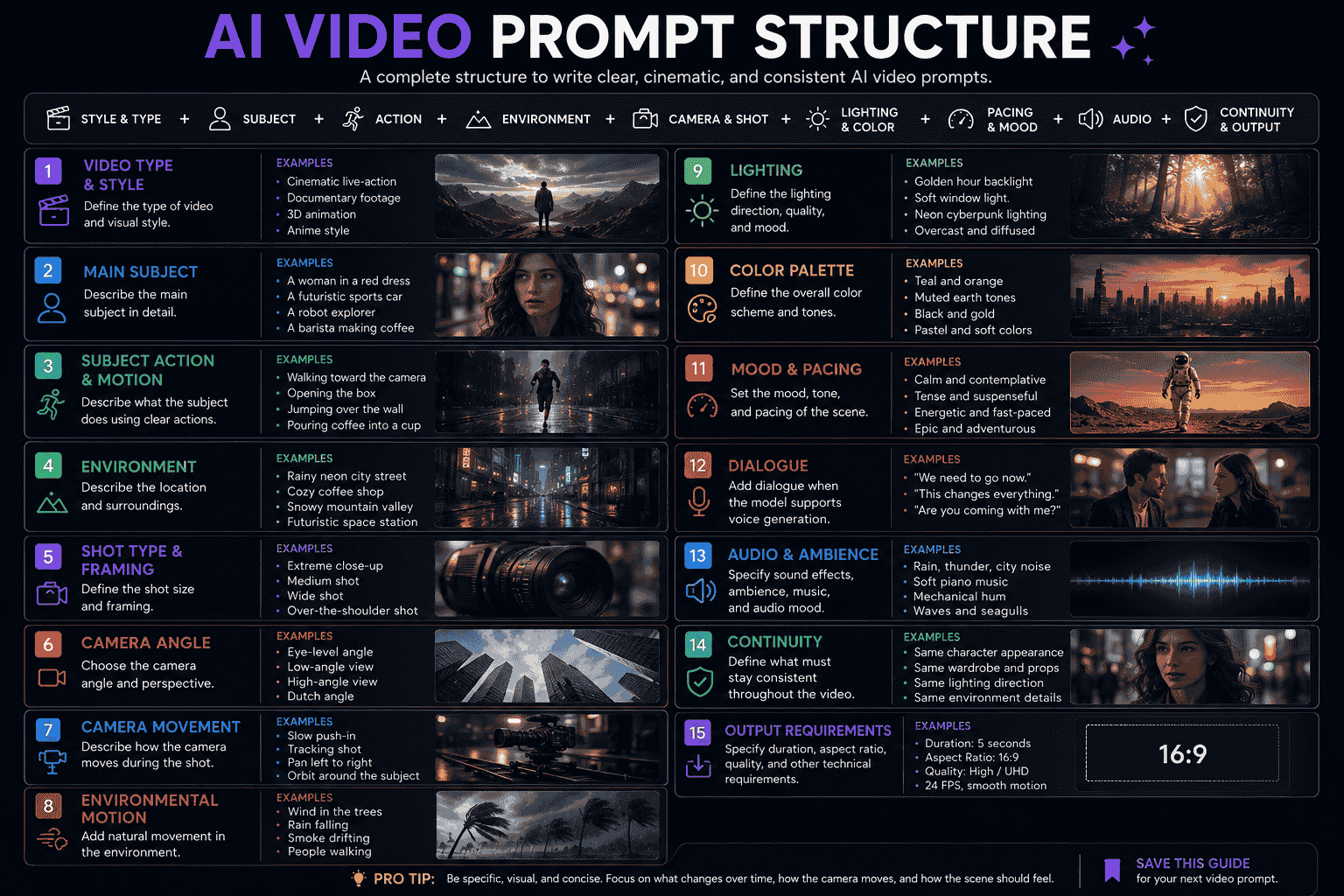
AI Video Prompt Structure
A practical reusable structure for AI video prompts is:
{video_type_and_style} of {main_subject}, {subject_action}, in {environment}. {shot_type_and_camera_angle}. {camera_movement}. {environmental_motion}. {lighting_and_color_palette}. {mood_and_pacing}. {dialogue_or_audio}. {continuity_and_output_requirements}.Example:
Cinematic live-action product video of a black wireless speaker resting on a dark stone surface inside a minimal studio. A thin ring of light activates around the speaker as subtle sound vibrations move dust particles across the surface. Begin with a macro close-up of the textured speaker grille. The camera slowly pulls back and arcs to the right, revealing the complete product. Warm side lighting creates a gold rim along the edges while the background remains deep charcoal. Slow, premium pacing. Audio includes a low electronic pulse, subtle vibration, and a clean activation sound. Keep the product shape, logo placement, materials, and proportions consistent throughout the shot.The structure can be divided into the following elements.
1. Video Type and Visual Style
Start by defining what type of video the model should create.
Examples:
- Cinematic live-action film
- Documentary footage
- Luxury product advertisement
- Stop-motion animation
- Anime key visual animation
- Handheld social media video
- Stylized 3D animation
- Retro VHS footage
- Nature documentary
- Editorial fashion film
The style should support the intended use rather than function as a random list of aesthetics.
2. Main Subject
Identify the main character, product, animal, object, vehicle, or location.
Instead of:
A woman.
Use:
A woman in her early thirties with shoulder-length wavy black hair, wearing a beige trench coat and carrying a red umbrella.
Specific descriptions become especially important when the subject must remain recognizable across several moments or shots.
3. Subject Action and Motion
Describe what the subject does using concrete physical actions.
Examples:
- Walks slowly toward the camera
- Turns over one shoulder
- Raises the glass and takes one sip
- Runs across the frame from left to right
- Opens the box and removes the product
- Pauses, looks upward, and smiles
- Reaches toward the control panel
- Transforms gradually into metallic particles
Avoid relying only on abstract instructions such as “moves dramatically” or “acts powerful.”
Explain what the physical movement looks like.
4. Environment
The environment provides spatial and narrative context.
Examples:
- A narrow neon-lit alley at night
- A quiet modern kitchen in the morning
- An abandoned research station on Mars
- A crowded open-air market during light rain
- A dark studio with a reflective floor
- A vast mountain valley covered in morning mist
Include only environmental details that meaningfully affect the scene.
5. Shot Type and Framing
Shot size controls how much of the subject and environment appears in the frame.
Common shot types include:
- Extreme close-up
- Macro close-up
- Close-up
- Medium shot
- Full-body shot
- Wide shot
- Establishing shot
- Over-the-shoulder shot
- Point-of-view shot
- Top-down shot
Choose framing based on what viewers need to understand.
A facial reaction may need a close-up. A large environment or action sequence may need a wider shot.
6. Camera Angle
The camera angle affects scale, emotion, and perspective.
Examples:
- Eye-level angle
- Low-angle view
- High-angle view
- Overhead view
- Ground-level perspective
- Dutch angle
- First-person perspective
7. Camera Movement
Camera movement explains how the viewer moves through the scene.
Examples:
- Slow push-in
- Pull-back reveal
- Horizontal pan
- Vertical tilt
- Tracking shot
- Dolly movement
- Orbit around the subject
- Crane upward
- Handheld follow shot
- Locked static camera
- Rapid crash zoom
Do not add complex camera movement simply to make the prompt sound cinematic.
The camera direction should support the subject and story.
8. Environmental Motion
A scene often feels more believable when the environment also moves.
Environmental motion may include:
- Wind moving hair, clothing, and leaves
- Rain falling and water creating ripples
- Steam rising from a drink
- Dust moving behind a vehicle
- Background pedestrians walking naturally
- Clouds drifting across the sky
- Light reflections moving across a product
- Smoke passing through the frame
9. Lighting
Lighting affects depth, atmosphere, realism, and visual hierarchy.
Examples:
- Soft morning window light
- Golden-hour backlighting
- Hard studio spotlight
- Flickering fluorescent light
- Neon blue and magenta lighting
- Overcast natural light
- Warm practical lamps
- Volumetric light through fog
10. Color Palette
Use a controlled palette when visual consistency matters.
Examples:
- Warm amber and deep brown
- Teal and orange contrast
- Muted blue-gray tones
- Black, white, and one red accent
- Pastel pink and pale cyan
- Indigo, bronze, and turquoise
11. Mood and Tone
Mood describes the intended emotional experience.
Examples:
- Quiet and contemplative
- Tense and suspenseful
- Playful and energetic
- Luxurious and controlled
- Epic and adventurous
- Authentic and documentary-like
- Warm and nostalgic
12. Pacing and Timing
Pacing explains how quickly the action develops.
Examples:
- Slow and deliberate
- Fast and energetic
- Gradually accelerating
- One continuous smooth movement
- Brief pause before the reveal
- Rapid action followed by a quiet ending
A short clip should not contain more actions than viewers can understand within the available duration.
13. Dialogue
When the selected model supports dialogue, provide the exact spoken line and identify the speaker.
Example:
The scientist looks at the glowing plant and quietly says, “This was not here yesterday.”
Keep dialogue concise enough for the clip duration.
14. Sound Effects and Ambience
When native audio is supported, you can describe:
- Environmental ambience
- Footsteps
- Mechanical sounds
- Wind and rain
- Room tone
- Object interactions
- Music direction
- Dialogue delivery
Example:
Audio includes soft rainfall, distant traffic, footsteps on wet pavement, and the quiet movement of the umbrella fabric.
15. Continuity and Output Requirements
Continuity instructions explain what should remain stable.
Examples:
- Keep the character’s face and hairstyle consistent.
- Preserve the product shape, materials, and logo placement.
- Maintain the same wardrobe throughout the shot.
- Keep the lighting direction unchanged.
- Do not introduce additional characters.
- Use a vertical composition for social media.
- Keep the camera entirely locked.
How to Write Better AI Video Prompts
Step 1 Define the Purpose
Start by deciding what the video will be used for.
Examples:
- Product advertisement
- Social media post
- Cinematic concept scene
- Character animation
- Music-video visual
- Website hero video
- Storyboard or previsualization
- Educational demonstration
The purpose affects framing, pacing, aspect ratio, duration, and the amount of information the video needs to communicate.
Step 2 Choose One Main Visual Idea
A short generated video should normally have one dominant idea.
Instead of asking for several unrelated events, identify the central moment.
Weak direction:
A knight fights a dragon, escapes a castle, rides through a forest, meets an army, and watches the sunrise.
Focused direction:
A wounded knight steps out of a ruined castle and sees an enormous dragon landing in the courtyard.
The focused scene is easier to communicate in a short clip.
Step 3 Describe the Starting Frame
Explain what viewers see at the beginning.
Example:
The video begins with a close-up of a sealed black product box resting on a concrete pedestal.
Step 4 Define the Main Action
Describe one clear movement or transformation.
Example:
The lid slowly rises and the product emerges while soft light spreads from inside the box.
Step 5 Direct the Camera
Choose a camera movement that reveals or follows the action.
Example:
The camera begins in a close-up, then slowly pulls back and arcs to the right to reveal the complete product.
Step 6 Add Environmental Motion
Environmental motion adds life without requiring another major event.
Example:
Fine dust particles move through the light while the background remains softly out of focus.
Step 7 Define the Lighting and Mood
Choose lighting that supports the scene’s purpose.
Example:
Warm side lighting creates a premium golden rim around the product against a dark charcoal background.
Step 8 Set the Pacing
Explain whether the movement should feel fast, slow, smooth, chaotic, restrained, or rhythmic.
Example:
The reveal is slow, controlled, and premium, with a brief pause after the product becomes fully visible.
Step 9 Add Audio When Supported
Audio should reinforce visible events.
Example:
A low electronic pulse builds during the reveal, followed by one clean activation sound.
Step 10 Explain the Ending
Tell the model what should be visible when the clip concludes.
Example:
The shot ends with the complete product centered in frame while the light ring remains softly illuminated.
Step 11 Generate and Evaluate
Review the result for:
- Subject accuracy
- Motion quality
- Camera behavior
- Physical consistency
- Scene continuity
- Pacing
- Lighting
- Audio alignment
- Ending frame
Step 12 Refine One Variable at a Time
When the result is close to your goal, change one important element.
Examples:
- Slow down the subject movement
- Replace the orbit with a push-in
- Make the camera fully static
- Reduce background motion
- Change the lighting from cool to warm
- Remove one unnecessary action
- Make the dialogue shorter
This makes it easier to understand which instruction improved the result.
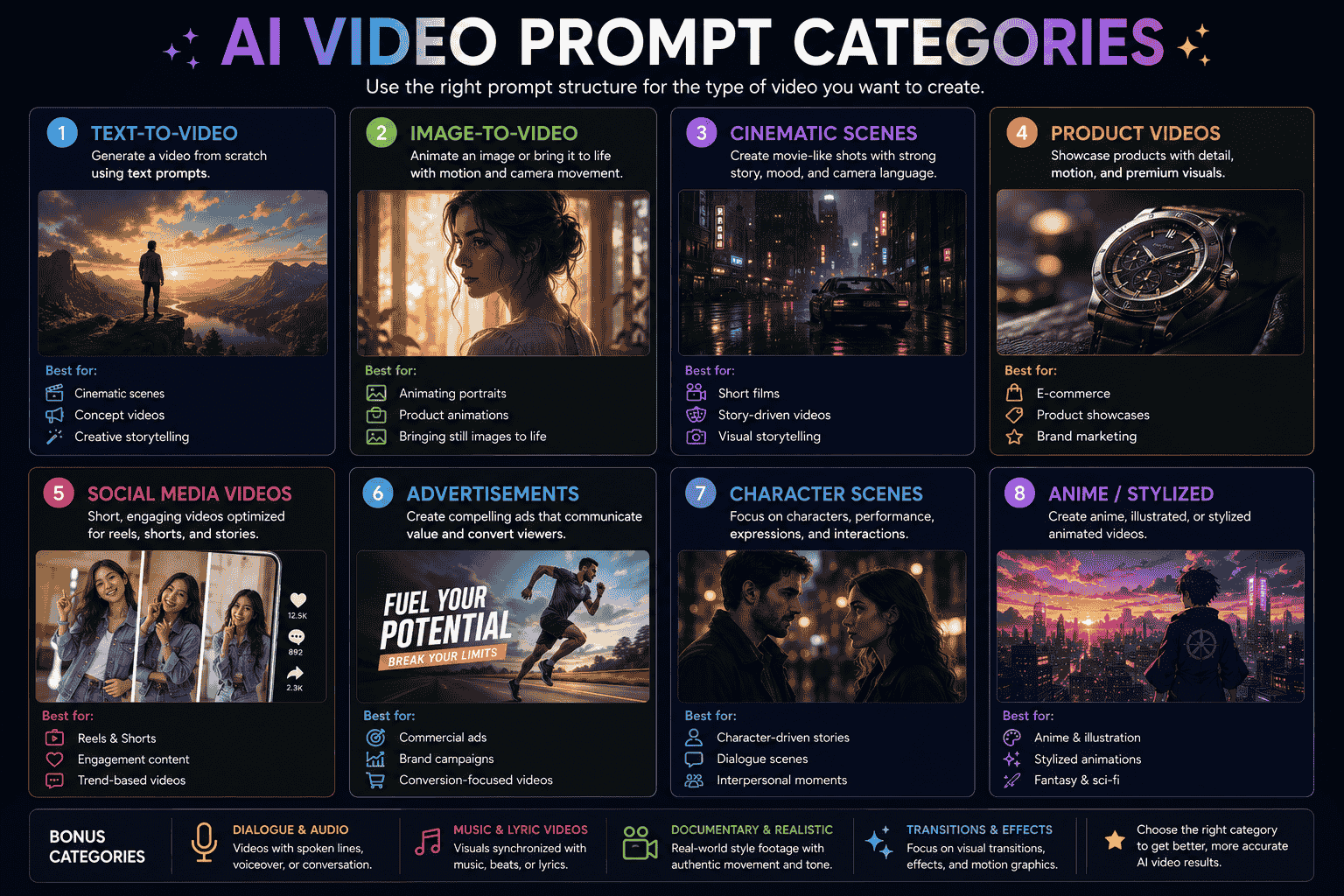
Text-to-Video Prompts
Text-to-video starts without a visual reference.
The prompt therefore needs to describe both what the scene looks like and how it moves.
Text-to-Video Template
{video_style} of {subject_description} {subject_action} in {environment}. {shot_type_and_angle}. {camera_movement}. {environmental_motion}. {lighting_and_colors}. {mood_and_pacing}. {audio_or_dialogue}. End with {final_frame}.Example 1 Realistic Urban Scene
Cinematic live-action scene of a woman in a beige trench coat walking alone through a narrow city street during light rain at night. She carries a red umbrella and walks toward the camera at a calm pace. Medium-wide eye-level shot. The camera tracks backward smoothly while maintaining the same distance from her. Reflections of blue and amber signs move across the wet pavement, background pedestrians pass naturally, and wind moves the edge of her coat. Quiet, introspective pacing. Audio includes rainfall, distant traffic, and soft footsteps. The shot ends as she pauses beneath a warm streetlight and looks upward.Example 2 Nature Documentary
Realistic nature documentary footage of a red fox emerging slowly from tall grass at sunrise. Low ground-level medium shot. The camera remains motionless while the fox steps into the open, listens, and turns its head toward a distant sound. Grass moves gently in the wind and morning mist drifts across the background. Soft golden backlight, natural earth-tone colors, patient observational pacing. Audio includes birds, wind through grass, and subtle animal movement.Example 3 Surreal Transformation
Surreal cinematic video of an ordinary office desk gradually transforming into a miniature coastal landscape. Begin with a close-up of a coffee cup and notebook. Water slowly rises across the desk surface, the notebook folds into rocky cliffs, and the coffee cup becomes a white lighthouse. The camera performs a slow pull-back as the transformation expands across the frame. Warm office lighting shifts gradually into soft sunset light. Smooth dreamlike pacing with gentle ocean ambience. End with a wide view of the complete miniature coastline.Image-to-Video Prompts
Image-to-video begins with a reference image that already establishes the subject, composition, environment, lighting, and style.
The prompt should usually focus on:
- Subject motion
- Camera motion
- Environmental motion
- Temporal progression
- The final state
- Elements that must remain unchanged
Avoid unnecessarily describing every visible detail in the image again unless the model needs a continuity reminder.
Image-to-Video Template
Animate the reference image. {subject_motion}. {camera_movement}. {environmental_motion}. {timing_and_pacing}. Preserve {elements_that_must_remain_unchanged}. End with {final_state}.Example 4 Portrait Animation
Animate the reference portrait. The subject breathes naturally, blinks once, and slowly turns her gaze from the window toward the camera. A light breeze moves several loose strands of hair and the curtain in the background. The camera performs a very subtle slow push-in. Keep her facial identity, clothing, pose, background layout, lighting direction, and color palette unchanged. Calm and realistic movement throughout.Example 5 Product Animation
Animate the reference product image. A narrow band of light moves slowly from left to right across the glass bottle, revealing its reflections and material texture. The camera executes a smooth ten-degree orbit to the right while maintaining the product in the center. Fine mist drifts behind the bottle. Preserve the packaging shape, label, logo, colors, scale, and pedestal. Slow premium pacing with no sudden movement.Example 6 Landscape Animation
Animate the reference landscape. Clouds move slowly across the sky, sunlight passes through them and creates changing highlights on the valley, and mist drifts between the mountains. The camera performs a gentle forward glide along the path in the foreground. Keep the terrain, buildings, vegetation, overall composition, and visual style consistent. Quiet cinematic pacing.AI Video Prompts for Cinematic Scenes
7. Cinematic Establishing Shot
Wide cinematic establishing shot of {location} at {time_of_day}. {main_subject} appears small within the environment and {action}. The camera {camera_movement}, revealing {important_location_detail}. {environmental_motion}. {lighting}, {color_palette}, and {mood}. Slow deliberate pacing with {ambience}. End with {final_reveal}.8. Suspense Scene
Psychological thriller film scene inside {location}. {character_description} moves cautiously toward {object_or_area}. Begin with an over-the-shoulder medium shot. The handheld camera follows closely with restrained natural shake. {environmental_detail} moves or reacts in the background. Low practical lighting creates deep shadows and limited visibility. Tense, slow pacing. Audio includes {sound_details}. The character stops when {final_event}.9. Action Scene
Fast-paced cinematic action scene of {subject} {action} through {environment}. Begin with a low-angle tracking shot. The camera follows alongside the subject, then swings behind as {secondary_action}. Debris, dust, water, or environmental elements react physically to the movement. High-contrast lighting, controlled motion blur, and energetic pacing. Keep the subject’s appearance and direction of travel consistent throughout.10. Emotional Close-Up
Intimate cinematic close-up of {character_description} reacting to {situation}. The camera remains nearly static with a very slow push-in. The character’s expression changes subtly from {initial_emotion} to {final_emotion}; eyes, breathing, and small facial movements remain natural. Soft directional lighting, shallow depth of field, restrained background motion, quiet pacing. End with the character {final_action}.AI Video Prompts for Product Videos
11. Luxury Product Reveal
Luxury product advertisement featuring {product}. Begin with a macro close-up of {specific_product_detail}. The camera slowly pulls back and performs a smooth three-quarter orbit, revealing the complete product on {surface}. A controlled highlight moves across the material while subtle particles drift in the background. {lighting}, {color_palette}, premium and restrained pacing. Preserve exact product proportions, packaging, logo placement, and material appearance. End with a clean centered hero shot.12. Lifestyle Product Demonstration
Natural lifestyle video of {target_user} using {product} in {environment}. Begin with a medium shot as the user {first_action}. The camera follows smoothly while the user {second_action}, clearly showing how the product is used. Natural daylight, realistic movement, approachable commercial mood. Keep the product visible and recognizable without exaggerated interaction. End with the user placing the product in {final_location}.13. Technology Product Video
Premium technology product film featuring {device}. The device rests on a dark reflective surface while a thin light activates along its edges. Begin with an extreme close-up of {feature}, then use a smooth horizontal slide to reveal {second_feature}. Subtle interface elements illuminate in sequence. Cool blue and neutral lighting, precise controlled movement, clean futuristic sound design. Preserve all ports, buttons, screen proportions, materials, and branding.14. Food and Beverage Video
Commercial food video of {dish_or_drink} being prepared. Begin with a macro close-up of {ingredient_or_detail}. {action_sequence} happens in one smooth continuous motion. The camera tracks the action from a close side angle. Steam, liquid, crumbs, or ingredients move naturally. Warm appetizing lighting, realistic textures, slow-motion emphasis during {key_moment}. End with a clean hero shot of the finished product.AI Video Prompts for Social Media
15. Vertical Product Reel
Vertical social media product video for {product}. Open immediately with {visual_hook}. The product enters the frame from {direction} while the camera performs {camera_movement}. Show {three_key_visual_moments} using fast but readable pacing. Use {brand_colors}, clear subject separation, and energetic lighting. Reserve clean negative space for text overlays. End with the product centered and fully visible. No generated text.16. Educational Social Clip
Short vertical educational video illustrating {concept}. Use one clear visual metaphor: {visual_metaphor}. Begin with the problem, transition smoothly into the explanation, and end with the solution. Modern editorial animation, simple shapes, {color_palette}, clear hierarchy, moderate pacing. Keep the center and upper area uncluttered for captions. No generated text.17. Satisfying Loop
Seamless looping video of {subject_or_process}. {main_action} happens in one continuous smooth motion and returns naturally to the starting state. Locked camera, centered composition, precise physical movement, clean background, satisfying rhythmic pacing. Keep lighting and object placement consistent so the final frame connects seamlessly to the first.AI Video Prompts for Advertisements
18. Problem and Solution Advertisement
Short advertisement for {product_or_service}. Begin with {target_user} experiencing {problem} in {environment}. Use a quick close-up to show the frustration clearly. Transition to the user discovering and using {product}. The pacing becomes smoother and the lighting becomes warmer as the problem is resolved. End with a confident product hero shot and clean negative space for the call to action. No generated text.19. Brand Mood Advertisement
Atmospheric brand film for {brand_or_product} built around the idea of {brand_theme}. Show {subject} moving through {environment} with {action}. Use {camera_style}, {lighting}, and {color_palette}. Focus on emotion and sensory detail rather than explaining features directly. Audio includes {sound_direction}. Slow premium pacing. End with a simple visual symbol associated with the brand.20. App Promotion Video
Modern app campaign video for {app_description}. Begin with {user_problem} represented visually. Transition into a clean device interface where the user completes {core_workflow}. Use close-up screen framing, smooth motion, and subtle interface highlights. Keep UI elements stable and readable. {brand_colors}, bright controlled lighting, efficient pacing. End with the completed result and space for a CTA.AI Video Prompts for Character Scenes
21. Character Introduction
Cinematic character introduction for {character_description}. The character stands in {environment}, wearing {wardrobe} and holding {prop}. Begin with a close-up of {important_detail}, then slowly pull back to a full-body view as the character {action}. Wind or environmental movement affects the clothing naturally. {lighting}, {color_palette}, and {mood}. Preserve the character’s facial identity, costume, body proportions, and accessories throughout.22. Two-Character Interaction
Natural dialogue scene between {character_one} and {character_two} inside {location}. Character one {first_action} and says, “{short_line_one}.” Character two reacts briefly, {second_action}, and replies, “{short_line_two}.” Use a stable medium two-shot with a subtle slow push-in. Maintain consistent faces, wardrobe, height, positions, and eye lines. Realistic conversation pacing with clear room ambience.23. Character Transformation
Full-body cinematic scene of {character} transforming from {initial_state} into {final_state}. The transformation begins at {starting_area} and progresses gradually through {visual_process}. The character remains in the same position while the camera performs a slow orbit. Lighting changes from {initial_lighting} to {final_lighting}. Preserve the character’s recognizable facial structure and silhouette throughout the transformation.AI Video Prompts for Anime Videos
24. Anime Character Moment
Cinematic anime scene of {character_description} standing in {environment}. The character {action}, while hair and layered clothing move naturally in the wind. Begin with a medium side profile and slowly arc toward a frontal three-quarter view. {lighting}, {color_palette}, expressive but controlled animation, polished anime key-art quality. Preserve facial design, hairstyle, costume details, and body proportions.25. Anime Action Shot
Dynamic anime action sequence of {character} using {ability_or_weapon} against {opponent_or_obstacle}. The character moves from {starting_position} to {ending_position} in one readable action. The camera tracks alongside, then quickly pans to follow the final impact. Energy effects follow the motion without covering the character. Strong silhouettes, dramatic perspective, {color_palette}, fast energetic pacing, consistent character design.26. Anime Environmental Scene
Quiet anime environmental scene of {character} sitting beside {location_or_landmark} at {time_of_day}. The character makes small natural movements while {environmental_motion}. The camera remains static or performs a very slow push-in. Soft atmospheric lighting, detailed background animation, calm reflective pacing. Preserve the character’s appearance and composition throughout.AI Video Prompts With Dialogue and Audio
Not every video generator produces native audio.
Check whether the selected model supports dialogue, ambience, music, and synchronized sound before adding audio instructions.
When audio is supported, keep the instructions organized.
Dialogue Template
{character_description} {action} and says in a {voice_description} voice, “{short_dialogue}.” {second_character_or_reaction}. Audio includes {ambience_and_sound_effects}. Keep the dialogue delivery natural and short enough for the clip duration.Example 27 Dialogue Scene
A tired astronaut removes her helmet inside a dim research station, looks toward the dark observation window, and quietly says, “There should be stars out there.” Her voice is calm but uneasy. A distant metal impact is heard from another room. Audio includes low ventilation hum, subtle electronic beeps, fabric movement, and the single distant impact. The camera slowly pushes toward her face as she stops breathing for a moment and listens.Sound Design Template
Audio: {environmental_ambience}. Synchronize {sound_effect} with {visible_action}. Add {secondary_audio_detail} in the background. Keep the audio natural, balanced, and appropriate for {mood}.Example 28 Product Sound Design
Audio: quiet premium studio ambience with a low electronic pulse. Synchronize a clean metallic click with the product opening. Add a subtle rising tone as the light activates, followed by a short soft confirmation sound. No voice-over or music.Audio Best Practices
- Keep spoken lines short.
- Identify who speaks.
- Describe the voice only when it matters.
- Connect sound effects to visible actions.
- Avoid requesting several overlapping audio events.
- Use ambience to support the environment.
- Review lip movement and dialogue synchronization carefully.
AI Video Prompts for Camera Movements
Camera language helps the model understand how the viewpoint should change.
Locked Camera
The camera remains completely locked and motionless for the entire shot. Movement occurs only from {subject_or_environmental_motion}.Slow Push-In
The camera slowly pushes toward {subject}, moving from {starting_shot} to {ending_shot} while maintaining stable framing and smooth motion.Pull-Back Reveal
Begin with a close-up of {detail}. The camera slowly pulls backward to reveal {subject_and_environment}, ending in a wide composition.Tracking Shot
The camera tracks alongside {subject} as they move from {direction}, maintaining a consistent distance and matching the subject’s speed.Orbit Shot
The camera performs a smooth {degree}-degree orbit around {subject}, keeping the subject centered while gradually revealing {background_detail}.Handheld Follow Shot
A handheld camera follows closely behind {subject}, with subtle natural movement that feels observational rather than unstable.Crane Reveal
The camera begins near ground level and rises smoothly above {foreground_element}, gradually revealing {large_environment_or_subject} in the distance.Point-of-View Movement
First-person point-of-view shot moving through {environment}. The camera responds naturally to footsteps and turns toward {important_event}.Focus Shift
Begin focused on {foreground_subject}. The focus gradually shifts to {background_subject} while the camera position remains unchanged.Crash Zoom
The shot begins wide, then performs a rapid controlled crash zoom toward {specific_detail}, ending in sharp focus.Use only the movement needed for the shot. Combining several camera techniques in a short clip can make the result difficult to follow.
How to Maintain Character and Scene Consistency
Consistency is one of the most important challenges in generated video.
Characters, products, environments, and props may change unexpectedly when their defining details are unclear.
Repeat Essential Character Details
Use a compact character description consistently.
Example:
Mara, a woman in her early thirties with shoulder-length wavy black hair, light freckles, a beige trench coat, and a red umbrella.
Do not describe the same character differently in each shot.
Keep Wardrobe and Props Stable
State which elements should remain unchanged:
- Clothing
- Accessories
- Weapon or tool
- Product packaging
- Vehicle design
- Object placement
Maintain Spatial Relationships
Explain where characters and objects are located.
Example:
The scientist remains on the left side of the table, while the robot remains directly opposite on the right.
Preserve Lighting Direction
If the key light begins on the left, avoid changing it without a narrative reason.
Use Reference Media When Available
Reference images or videos can help establish appearance, composition, wardrobe, products, and environments.
The text prompt should explain what should move or change while identifying what must remain consistent.
Use One Shot Per Generation When Necessary
Complex multi-shot sequences may be harder to control than individual shots.
A practical workflow is:
- Generate the establishing shot.
- Generate the medium action shot.
- Generate the close-up.
- Edit the shots together externally.
This can provide more control over continuity, pacing, and shot selection.
Create a Continuity Block
You can append a compact continuity section to prompts:
Continuity requirements:
- Preserve the character’s facial identity and hairstyle
- Keep the same wardrobe and accessories
- Maintain the same environment and time of day
- Keep the key light on the left
- Do not add extra characters
- Preserve the product design and logo placement
How to Adapt Prompts for Different AI Video Generators
The same core creative direction can be adapted across tools, but each platform may interpret prompts, reference media, audio, duration, and camera controls differently.
Model capabilities and versions change frequently, so check the official documentation before building a production workflow around specific settings.
Veo
Veo prompts can include shot framing, camera motion, visual style, lighting, detailed character descriptions, location, action, dialogue, and sound design.
When using dialogue or native audio, describe the speaker, spoken line, delivery, ambience, and synchronized sound effects clearly.
Example direction:
Cinematic medium shot of a park ranger standing beside a damaged observation tower during a storm. The camera slowly pushes toward her as lightning reveals the forest behind. She looks toward the tower and says quietly, “That was not the wind.” Audio includes heavy rain, distant thunder, radio static, and one metallic impact from above.Review the official Veo prompt guide for current examples and supported workflows.
Runway
For text-to-video, describe both the visual scene and its motion.
For image-to-video, the reference image already defines much of the visual appearance, so the prompt should focus on subject movement, environmental movement, camera behavior, and temporal progression.
Clear physical actions usually work better than vague conceptual movement.
Example image-to-video direction:
The subject slowly turns toward the camera and raises the glass to eye level. Steam moves upward while the curtain shifts gently in the wind. The camera performs a subtle slow push-in. Preserve the subject’s face, clothing, background, and lighting.Review Runway’s Text-to-Video Prompting Guide and Image-to-Video Prompting Guide for current recommendations.
Seedance
Seedance workflows can support combinations of text, image, audio, and video references, depending on the available product and model version.
For multi-shot or reference-heavy workflows, clearly define:
- The role of each reference
- The main subject
- The order of shots
- The action in each shot
- The visual style that should remain consistent
- The audio or timing relationship
Example:
Use image 1 as the character reference, image 2 as the environment reference, and the uploaded audio as the timing reference. Create three connected shots: a wide view of the character entering the market, a medium tracking shot as she moves through the crowd, and a close-up as she discovers the glowing object. Maintain the same face, clothing, environment, lighting, and color palette across every shot.Review the official Seedance information for current supported inputs and capabilities.
Other AI Video Generators
Use the universal structure as a starting point:
- Describe the subject.
- Describe the action.
- Define the environment.
- Set the framing and camera movement.
- Add lighting and mood.
- Explain timing and pacing.
- Add audio only when supported.
- Define continuity requirements.
Then adapt tool-specific parameters, reference controls, duration, resolution, and audio settings through the platform interface.
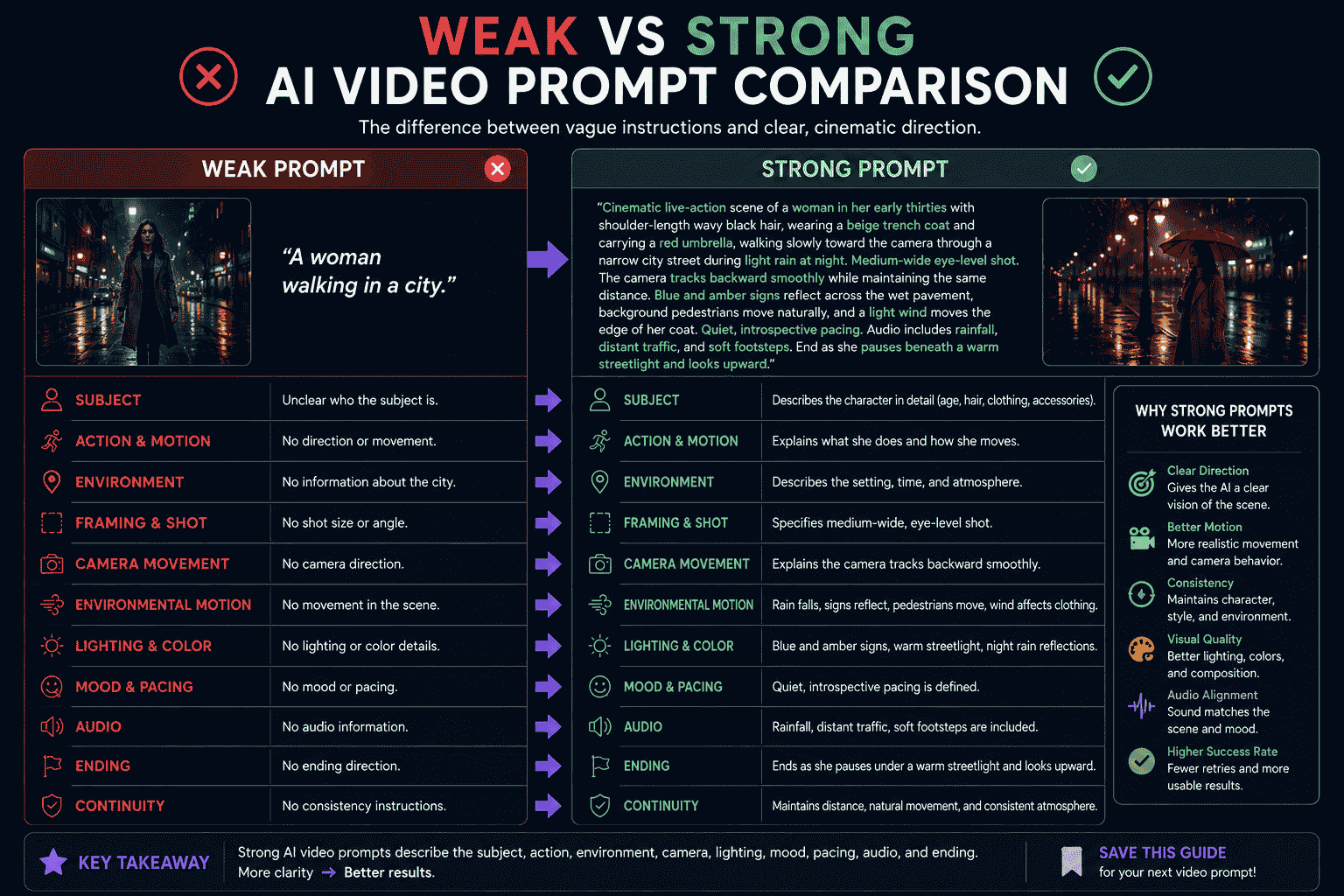
Weak vs Strong AI Video Prompts
Example 1 Cinematic Scene
Weak prompt:
A woman walking in a city.
What is missing:
- Character description
- Environment details
- Direction and speed
- Shot framing
- Camera movement
- Lighting
- Environmental motion
- Pacing
- Audio
- Ending
Stronger prompt:
Cinematic live-action scene of a woman in her early thirties with shoulder-length wavy black hair, wearing a beige trench coat and carrying a red umbrella, walking slowly toward the camera through a narrow city street during light rain at night. Medium-wide eye-level shot. The camera tracks backward smoothly while maintaining the same distance. Blue and amber signs reflect across the wet pavement, background pedestrians move naturally, and a light wind moves the edge of her coat. Quiet, introspective pacing. Audio includes rainfall, distant traffic, and soft footsteps. End as she pauses beneath a warm streetlight and looks upward.
Example 2 Product Video
Weak prompt:
Make a cool video of this perfume.
Stronger prompt:
Animate the reference perfume image as a premium luxury product film. A narrow warm highlight moves slowly across the amber glass bottle from left to right, revealing realistic reflections and liquid texture. The camera performs a smooth fifteen-degree orbit to the right while keeping the bottle centered. Fine mist drifts behind the product and a soft botanical shadow moves across the beige studio wall. Preserve the bottle shape, black cap, label, logo placement, pedestal, and composition. Slow elegant pacing. End with a clean centered hero shot.
Example 3 Character Scene
Weak prompt:
A fantasy warrior gets ready to fight.
Stronger prompt:
Cinematic full-body character scene of a desert guardian wearing layered indigo robes and weathered bronze armor at the entrance of an ancient sandstone city. The guardian steps forward, plants a crescent-shaped spear into the ground, and lowers into a calm defensive stance. Begin with a medium low-angle shot and slowly pull back to reveal the full body and city gates. Strong wind moves the robes and carries dust across the courtyard. Warm sunset rim light with turquoise gemstone accents. Controlled heroic pacing. Preserve the character’s face, costume, weapon, body proportions, and direction of light throughout.
Example 4 Image-to-Video
Weak prompt:
Make this image move.
Stronger prompt:
Animate the reference image. The character breathes naturally, blinks once, and slowly turns her gaze toward the glowing tree. Wind moves her long hair and the layered fabric of her dress toward the left. Purple energy pulses gradually through the tree branches while small particles rise into the air. The camera performs a very slow push-in. Preserve the character’s face, pose, clothing, weapon, environment, composition, and lighting direction.
Common AI Video Prompt Mistakes
1. Describing Only a Still Image
A video prompt needs motion and progression.
Explain what changes, how it changes, and how the shot ends.
2. Using Vague Motion Words
Instructions such as “moves dramatically” or “acts cinematic” leave too much room for interpretation.
Describe observable physical movement.
3. Adding Too Many Actions
A short clip may not have enough time to communicate several major events.
Choose one clear action or divide the concept into separate shots.
4. Combining Too Many Camera Movements
A prompt that requests a pan, tilt, orbit, zoom, crane, and handheld movement in one short shot may produce confusing motion.
Choose one primary camera movement and one minor adjustment when necessary.
5. Ignoring Environmental Motion
Hair, clothing, rain, smoke, dust, trees, water, and background activity should respond naturally to the scene.
6. Repeating the Entire Reference Image Description
For image-to-video, focus primarily on movement and progression. Repeat only the details required for continuity.
7. Not Protecting Character or Product Identity
State which details must remain unchanged.
8. Ignoring Duration
Dialogue, movement, and story progression should fit within the available clip length.
9. Using Conflicting Styles
A single prompt should not combine several incompatible visual and motion styles without a clear purpose.
10. Overloading the Audio
Several dialogue lines, music cues, sound effects, and environmental sounds may compete with one another.
Prioritize the most important audio events.
11. Leaving the Final Frame Undefined
An ending instruction can help the model complete the motion more intentionally.
12. Changing Everything During Refinement
Modify one major element at a time so you can understand what improved or damaged the result.
13. Expecting Perfect Continuity Across Complex Multi-Shot Videos
When consistency matters, generate individual shots and edit them together when necessary.
14. Treating the First Generation as Final
Video generation is iterative. Evaluate motion, framing, physical consistency, pacing, and continuity before refining the prompt.
How PrompTessor Helps With AI Video Prompts
PrompTessor helps users generate, analyze, optimize, refine, reverse-engineer, save, and reuse AI video prompts inside one prompt workspace.
You can begin with a rough idea such as:
Create a cinematic product video.
Prompt Generator can help expand the idea into a structured video prompt with:
- Video type and style
- Main subject
- Subject action
- Environment
- Shot framing
- Camera movement
- Lighting
- Color palette
- Pacing
- Audio direction
- Continuity requirements
Prompt Analysis can help identify missing elements such as:
- Unclear subject movement
- Undefined camera behavior
- Missing environment
- No pacing direction
- Weak continuity instructions
- Unclear ending
- Too many actions for one clip
Prompt Optimizer can improve a weak video prompt by making its scene, motion, timing, camera direction, and constraints clearer.
Prompt Refinement can apply targeted feedback such as:
- Make the camera movement slower
- Turn the prompt into an image-to-video prompt
- Add dialogue and environmental audio
- Remove unnecessary actions
- Make the scene suitable for a vertical social video
- Keep the character consistent
- Adapt the prompt for a different video model
- Turn the result into a reusable template
PrompTessor also includes Video to Prompt as part of Reverse Prompt.
Video to Prompt starts from an existing video reference and can identify reusable details such as:
- Scene progression
- Subject movement
- Camera behavior
- Timing
- Pacing
- Transitions
- Lighting
- Visual style
- Continuity
- Quality constraints
This creates an important distinction:
- Prompt Generator starts from an idea, goal, or task.
- Video to Prompt starts from an existing video reference.
After a generated or reverse-engineered video prompt works well, it can be refined, optimized, copied, and saved in the Prompt Library for future creative workflows.
For the broader reference-first workflow, read How to Reverse Prompt Images Videos URLs and Text to Reveal the Prompt Behind Any Content.
FAQ About AI Video Prompts
What is an AI video prompt?
An AI video prompt is an instruction describing the video an AI model should generate, animate, transform, or edit. It may include the subject, action, environment, framing, camera movement, lighting, pacing, audio, and continuity requirements.
What makes a good AI video prompt?
A good AI video prompt clearly defines what viewers should see, what moves, how the camera behaves, how the scene develops over time, what mood or pacing is intended, and what details must remain consistent.
How are video prompts different from image prompts?
Image prompts primarily describe visual appearance and composition. Video prompts must also describe subject movement, environmental movement, camera behavior, timing, pacing, progression, and sometimes audio.
How long should an AI video prompt be?
There is no universal ideal length. The prompt should contain enough information to communicate the scene and motion clearly without creating conflicting instructions or excessive action.
What should a text-to-video prompt include?
A text-to-video prompt should normally include both visual details and motion details, such as the subject, environment, action, framing, camera movement, lighting, pacing, and ending.
What should an image-to-video prompt include?
An image-to-video prompt should focus on what moves, how the camera moves, how the environment reacts, how the scene progresses, and what visible details must remain unchanged.
How do I describe camera movement in an AI video prompt?
Use clear camera terms such as locked camera, slow push-in, pull-back, tracking shot, pan, tilt, orbit, handheld follow shot, crane movement, or point-of-view shot. Explain what the movement follows or reveals.
Can AI video prompts include dialogue?
Yes, when the selected video model supports dialogue or native audio. Identify the speaker, provide a short spoken line, describe the delivery, and keep it realistic for the clip duration.
Can AI video prompts include sound effects?
Models with audio support can use prompts describing ambience, footsteps, mechanical sounds, weather, dialogue, music direction, and synchronized sound effects.
How do I maintain character consistency in AI videos?
Repeat essential character details, preserve wardrobe and props, maintain lighting and spatial relationships, use reference media when available, and include explicit continuity requirements.
Can the same prompt work with every AI video generator?
The same core prompt can provide a useful starting point, but results and supported controls differ between tools. Camera syntax, audio, references, duration, aspect ratio, and editing workflows may need to be adapted.
What is the difference between AI Video Prompt Generator and Video to Prompt?
A video prompt generator starts from an idea or goal and creates a prompt. Video to Prompt starts from an existing video reference and turns its motion, scene progression, camera behavior, timing, and style into a reusable prompt.
Can PrompTessor create AI video prompts?
PrompTessor helps users generate, analyze, optimize, refine, reverse-engineer, save, and reuse AI video prompts for different video generators and creative workflows.
Build Better AI Video Workflows With Reusable Prompts
Better AI videos begin with clearer visual and temporal decisions.
Describe what viewers see, what moves, how the camera behaves, how quickly the scene develops, what sounds support the action, and what should remain consistent.
Do not try to fit an entire film into one short generation.
Start with one clear shot, generate several options, review the motion, and refine one important element at a time.
For image-to-video, allow the reference image to define the appearance and use the prompt to direct motion.
For text-to-video, provide both the visual foundation and the temporal progression.
Once a prompt produces a useful result, turn it into a reusable template and save it for future cinematic, product, advertising, character, social media, or animation workflows.
A good AI video prompt does not describe only a scene. It directs what happens inside that scene over time.
Build better prompts in one workspace
Generate prompts from ideas, analyze and optimize quality, refine with feedback, reverse-engineer content, and save reusable prompts in your Prompt Library.
Try PrompTessor Free